
Overview of the navigation area
Edit the sidebar menu (administrator)
Rearrange menu items
Create a new menu item (administrator)
Troubleshooting
Overview of the navigation area
At the top of the interface, you will find the Quick menu, which provides fast access to commonly used functions.

Below the quick menu is the navigation menu (sidebar). This menu allows you to access different areas and selections in CMMS 10.
Resize the sidebar
You can adjust the width of the sidebar to better fit your workflow.
Steps
-
Locate the vertical divider line between the sidebar and the main workspace.
-
Click and drag the line left or right.
-
Release the mouse when the sidebar reaches the desired width.
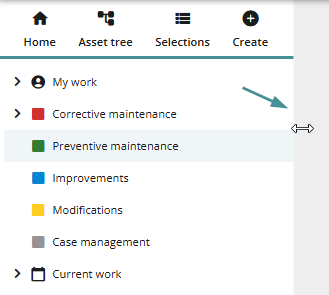
This change only affects your personal user view and does not impact other users.
Edit the sidebar menu (Administrator)
Administrators can modify the structure of the sidebar menu.
When to use this
Use this feature when you want to:
-
Reorganize menu items for easier navigation
-
Group related items together
-
Customize the menu structure for your organization
Steps to edit the menu
-
Open the sidebar.
-
Scroll to the bottom of the sidebar.
-
Click Edit menu.
The menu will now enter editing mode.
Rearrange menu items
You can organize menu items using drag and drop.
Steps
-
Click and hold a menu item.
-
Drag it to a new location.
While dragging, you will see visual indicators:
-
Blue square around a menu item
-
The item will be placed inside that menu item as a sub-item.
-
-
Horizontal line between items
-
The item will be placed between those menu items.
-
-
-
Release the mouse to place the item.
-
When you are finished editing the menu
-
- Click Finish editing
Your menu changes will now be saved.
Create a new menu item (Administrator)
Administrators can also create new entries directly from the sidebar.
Steps
-
Open the sidebar.
-
Select the option to create a new menu item.
For more instructions read How do I create a menu item?
Troubleshooting
Menu items cannot be moved
-
Ensure you have clicked Edit menu before attempting to drag items.
-
Verify that your user has administrator permissions.
Sidebar size does not change
-
Make sure you are dragging the correct divider line between the sidebar and the main view.
Changes are not saved
-
Confirm that you clicked Finish editing before leaving the page.