
When to use this
Use this process when you need to:
-
Add a new item or folder to the sidebar menu.
-
Control who can see a specific menu item.
-
Organize the sidebar by creating parent folders or nested menu items.
Only users with administrator permissions can edit the sidebar menu.
Create a new sidebar menu item
1. Open the sidebar menu.
2. Scroll to the bottom of the menu list.
3. Click Edit menu.
4. Select + Add menu item.

The Add menu item dialog will open. Complete the fields depending on the type of menu item you want to create.
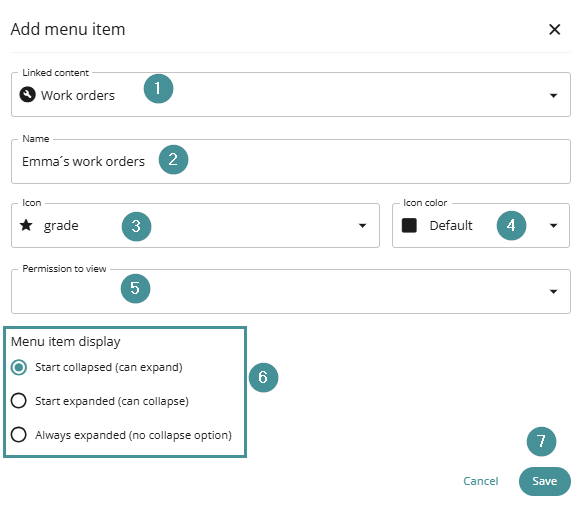
Menu item settings
1. Linked content
Defines what the menu item links to.
-
If you select linked content, the menu item becomes clickable and opens that content.
-
If you leave this empty, the menu item acts as a folder.
-
It will not open anything.
-
It can be used to organize child menu items underneath it.
-
Use folders when grouping related items in the sidebar.
2. Name
The display name of the menu item.
-
This field is required.
-
The text entered here will appear in the sidebar menu.
3. Icon
Choose an icon for the menu item.
You can:
-
Select an icon from the dropdown list, or
-
Search for a specific icon.
4. Icon colour
Sets the color of the icon only.
-
This does not affect the menu item name.
5. Permission to view
Controls which users can see the menu item.
-
If left empty, the menu item is visible to all users.
-
You can also restrict visibility to specific user groups created in the system.
6. Menu item display
Determines how the menu item behaves in the sidebar.
Start collapsed (can expand)
-
Displays with a right arrow.
-
Users can click it to expand and view child items.
Start expanded (can collapse)
-
The menu item is expanded by default.
-
Users can collapse it if needed.
Always expanded (no collapse option)
-
The menu item is always expanded.
-
No arrow is shown and it cannot be collapsed.
7. Save and place the menu item
1. Click Save.
2. The new menu item will appear in the menu list.
3. Use drag and drop to place it where you want in the sidebar hierarchy.
You can also drag it under another item to create a child menu item.
Troubleshooting
Menu item is not visible to users
-
Check the Permission to view setting.
-
Make sure the correct user group is selected.
Menu item cannot be clicked
-
Verify that Linked content is configured.
-
If this field is empty, the item behaves as a folder only.
Menu structure looks incorrect
-
Use drag and drop in the menu editor to reorder or nest items correctly.