
When to use this
Use this process when you:
- Want to generate QR codes for assets.
-
Need to enable quick access to asset-related actions via scanning.
Download the CSV file
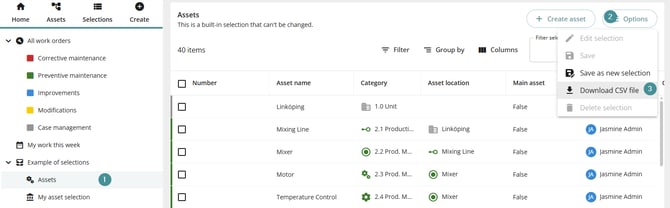
To begin, you need to download the CSV file containing your asset data.
Steps
-
Navigate to the Assets section in CMMS 10. (Assumption: Assets are accessed via the main menu.)
-
Locate the option to download asset data.
-
Select Download CSV file.
-
Save the file to your computer.
Prepare the CSV file in Excel
After downloading the CSV file, you need to format it correctly in Excel.
Steps
-
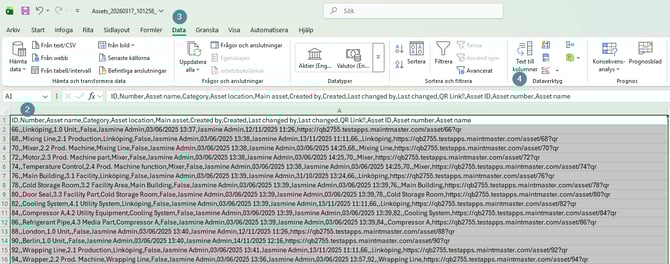
Open the downloaded CSV file in Excel.
-
Select Column A.
-
Go to the Data tab.
-
Click Text to Columns.
-
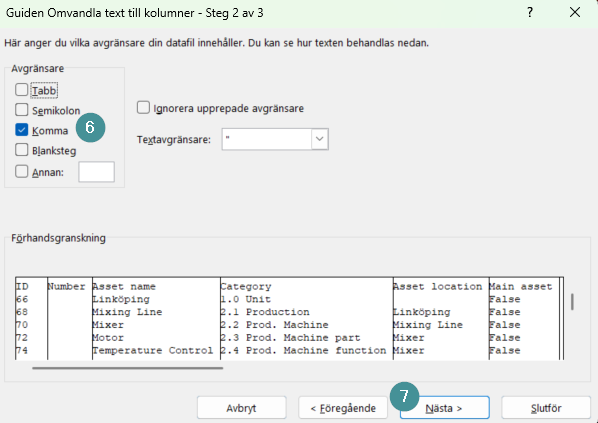
Choose Delimited, then click Next.
-
Select Comma as the delimiter.
-
Click Next, then Finish.
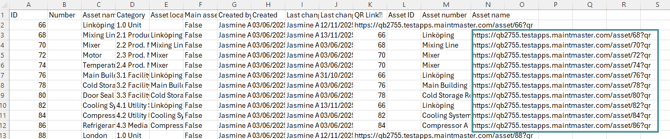
You should now see the data separated into multiple columns for easier readability.
If your data still appears in one column, double-check that Comma is selected as the delimiter.
Locate the QR code URLs
Once the data is structured:
-
Identify the column containing URLs.
-
These URLs are used to generate QR codes for each asset.
Create QR codes
Maintmaster does not provide built-in QR code generation.
What to do
-
Copy the URLs from the Excel file.
-
Use a QR code generator tool (external application or website).
-
Generate a QR code for each URL.
-
Save or print the QR codes for use on your assets.
QR codes must be created outside of CMMS 10. You need to use a third-party tool.
What happens when a QR code is scanned?
When a user scans the QR code:
-
They are directed to the specific asset in CMMS 10.
-
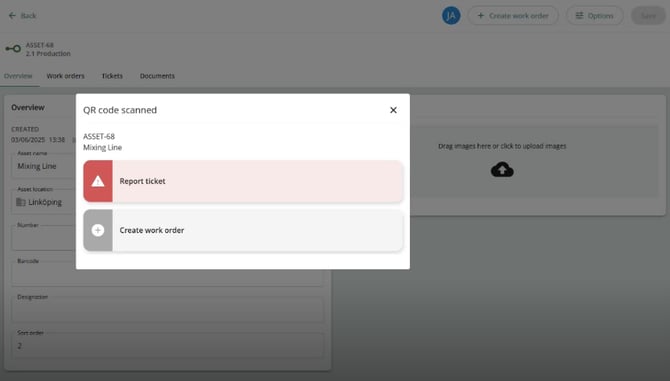
A dialog appears confirming the QR code scan.
-
The user can:
-
Report a ticket, or
-
Create a work order linked to the asset.
-
Troubleshooting
The CSV data is not split into columns
-
Ensure you selected Text to Columns.
-
Verify that Comma is chosen as the delimiter.
QR code does not work
-
Check that the URL is correct and complete.
-
Make sure the QR code was generated using the full URL.
Scanning does not open the correct asset
-
Confirm the QR code matches the correct URL from the file.
-
Regenerate the QR code if necessary.