
1. Creating a checklist on a work order
2. Adding content to checklist step
3. Handling checklist steps during work
4. Troubleshooting
When to use this
Use a checklist when a work order requires structured steps that a technician must follow, inspect, or document during the task.
Examples include:
-
Preventive maintenance procedures
-
Safety inspections
-
Standardized repair processes
Creating a checklist on a work order
1. Open the work order.
2. Save the work order card first.
3. Go to the Checklist tab.
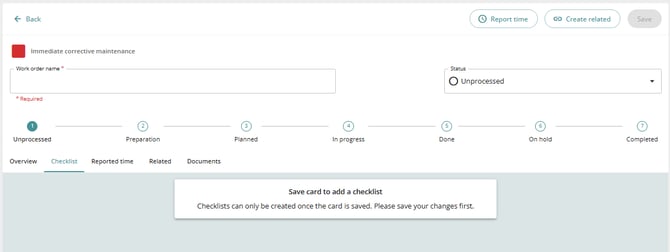
4. Select Add a new checklist step.
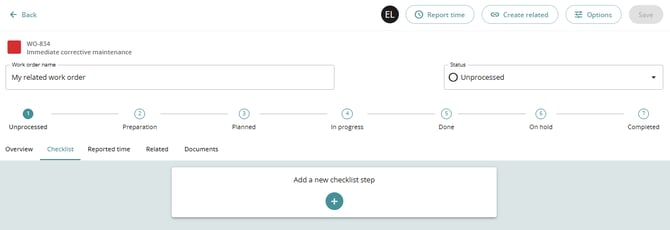
This opens what is referred to as editing mode.
Add step details
When creating a step, you need to:
1. Enter a Step title.
2. Select an Asset (optional).
By default, the asset from the work order is pre-selected, but you can:
-
Keep the same asset
-
Leave the field empty
-
Select a different asset
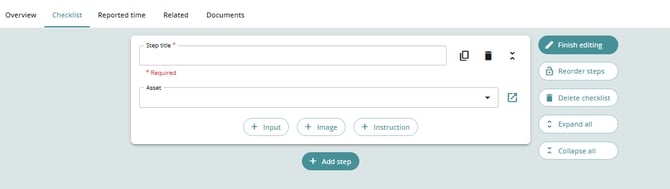
Checklist step options
Each checklist step includes several action buttons.
Step card actions
-
Duplicate
Creates a copy of the selected step. -
Remove
Deletes the specific step. -
Collapse
Shows only the step title instead of the full details.
Checklist editing actions
These controls appear on the side of the checklist:
-
Finish editing
Ends editing mode when all steps are created. -
Reorder steps
Allows you to drag and drop steps to change their order. -
Delete checklist
Removes the entire checklist.
Deleting the checklist removes all steps permanently.
-
Expand all
Expands all steps to show full information. -
Collapse all
Collapses all steps so only titles are visible.
Adding content to checklist steps
Each step can contain different types of content.
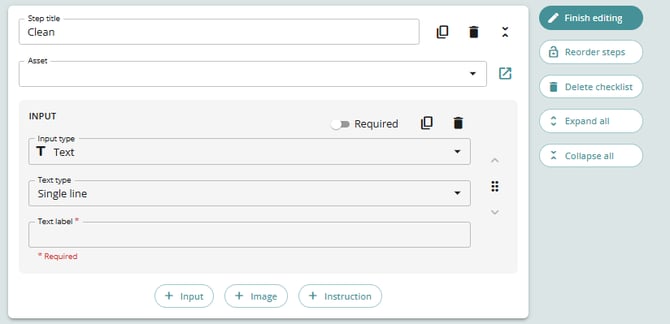
Input
Adds a field that the user must complete.
You can configure:
-
Input type
-
Settings
-
Whether the field is required
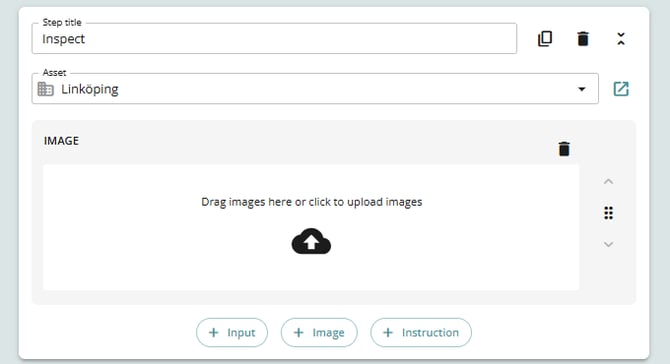
Image
Allows you to upload images related to the step.
-
You can add one image at a time.
-
To add more images, select Add image again.
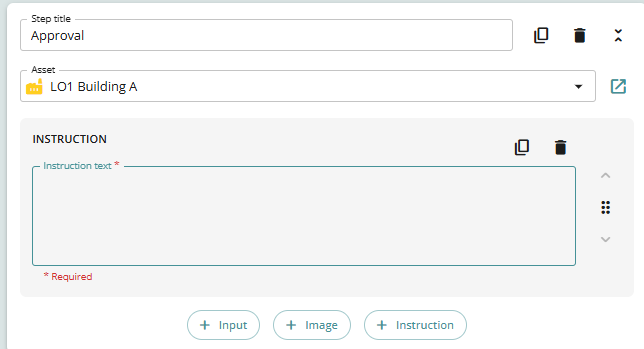
Instruction
Adds simple text instructions for the user to follow.
Reordering step content
Within a checklist step, content blocks can be rearranged.
-
Drag and drop the elements.
-
Place them in the preferred order.
Handling checklist steps during work
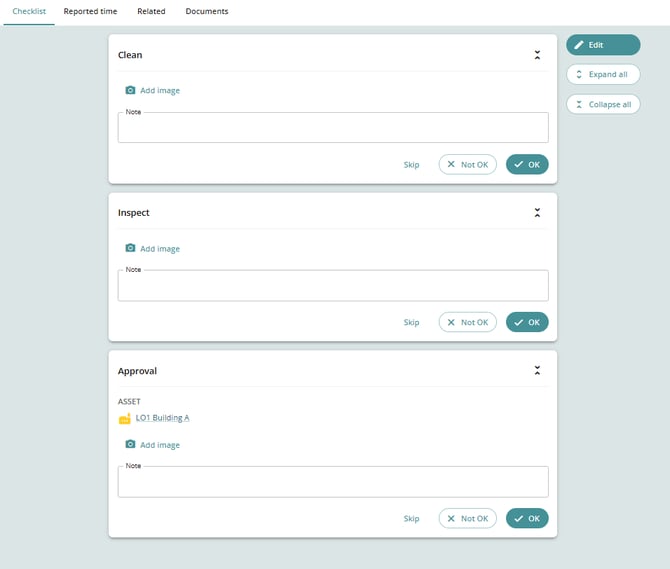
When performing the checklist, users can add:
-
Images
-
Notes
Additional information may appear depending on the inputs or instructions added during setup.
Asset visibility
If the step:
-
Uses the same asset as the work order, or
-
Leaves the asset field empty
Then the checklist card will not show any difference.
If another asset is selected, it will be displayed on the step card.
Completing checklist steps
When working through a checklist, users can select one of the following statuses:
Skip
Indicates that the step was not performed.
Not OK
Indicates that an issue was detected.
This allows the user to:
-
Create a follow-up ticket
-
Create a new work order
OK
Indicates that the step was completed successfully.
When OK is selected:
-
The step automatically collapses
-
The system records:
-
Time
-
Date
-
User who completed the step
-

Undoing a completed step
An Undo icon appears after a step is completed.
Selecting Undo will:
-
Reopen the step
-
Allow editing again
Once a step is completed, it cannot be edited unless it is undone first.
Troubleshooting
Cannot add a checklist step
Ensure the work order is saved first. The checklist feature becomes available only after saving.
Unable to edit a completed step
Steps that are marked as finished cannot be edited.
Use the Undo option to reopen the step before making changes.
Asset not appearing on the step
If the step uses the same asset as the work order, it will not be displayed separately on the checklist card.