
When to use this
Use this configuration when you want to:
-
Control which tickets or work orders can be created from a checklist step marked as Not OK.
-
Limit users to specific categories when reporting problems during inspections or rounds.
-
Prevent users from creating incorrect or unnecessary follow-up work.
Configure “Not OK” options
Administrators can configure which follow-up options appear when a checklist step is marked Not OK.
Steps
1. Go to System settings.
2. Open the section for Checklist and Follow-up categories.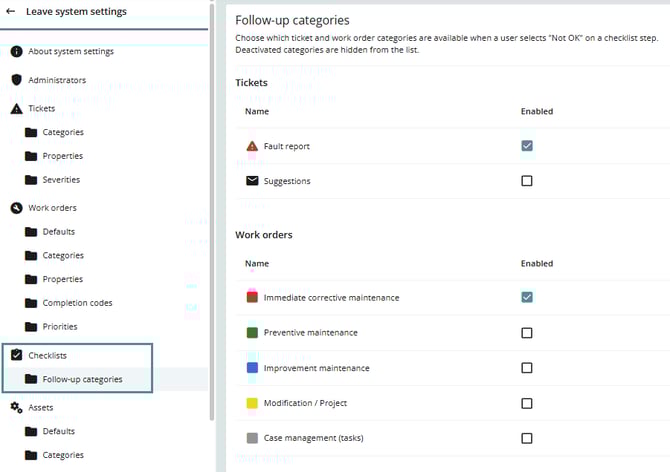
3. Select which ticket categories should be available when a checklist step is marked Not OK.
4. Select which work order categories should be available.
5. Click Save.
The selected categories will now appear as options when users mark a checklist step as Not OK.
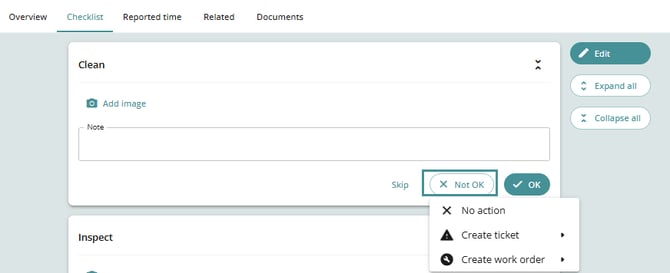
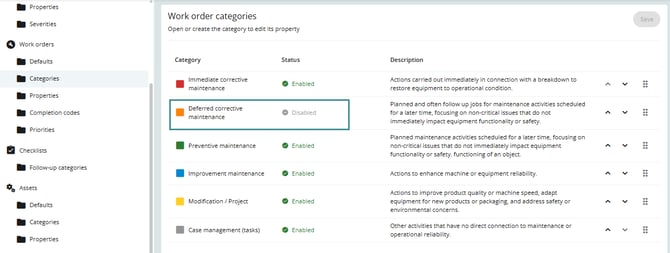
Disabled categories
If a category is disabled in the system, it will not appear in the “Not OK” configuration list.
This ensures that only active categories can be selected.
What happens if no categories are configured?
If no ticket or work order categories are selected, marking a checklist step as Not OK will:
-
Simply mark the step as Not OK
-
Not show any options for creating follow-up work

If no follow-up categories are configured, users cannot create tickets or work orders directly from the checklist step.
Troubleshooting
The expected category does not appear
-
Verify that the category is enabled in the system.
-
Check that the category is selected in the Not OK configuration.
No options appear when clicking “Not OK”
-
Confirm that at least one ticket or work order category is configured in the settings.
-
Save the settings and refresh the work order checklist if necessary.