
When to use this
Use this when you need to:
- Filter data based on dates or text
- Group and organize selection data
- Customize visible columns and layout
- Navigate and interact with selection results
Selection layout and display options
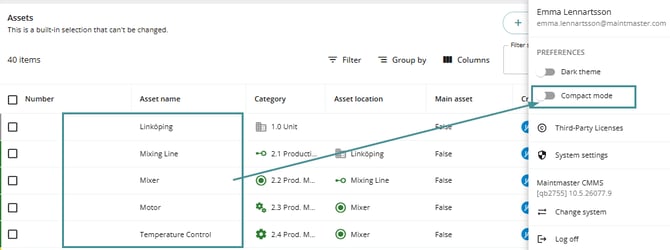
Types of selections in CMMS 10
There are two main types of selections in CMMS 10:
- Built-in selections – Available by default in every system and show all entities without filtering. They cannot be modified or saved, and are mainly used as a base for creating new selections.
- Customizable selections – These can be modified and saved (by administrators). They include both preconfigured selections (created during implementation) and custom selections created by users later on.
Common elements in selections
All selections in CMMS 10 share a few common elements:
- A title is always displayed
- A description may be included
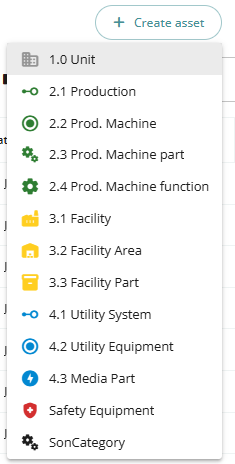
- A Create button is available, based on the entity type (e.g. Create asset)

The Create button allows you to:
- Choose category of item to create
- Open the item card
- Create and save the new item
After saving, you can return to the selection view.
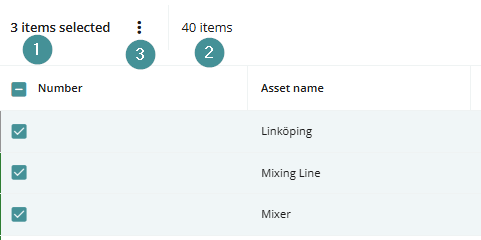
Below the header, you will also find a counter:
- Shows the total number of items in the selection (e.g. 40 items)
- Updates dynamically when rows are selected
Example
1. Selecting multiple rows will update the counter (e.g. “3 items selected”)2. The total number of items is still displayed alongside
3. If bulk actions are available, a context menu will appear when items are selected.
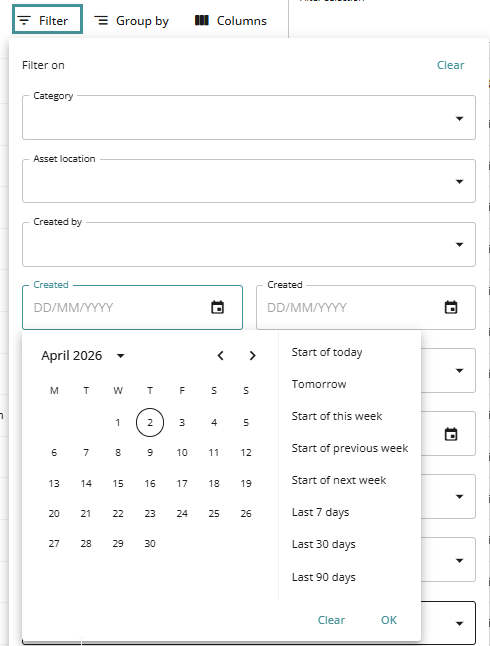
Filter selections
You can filter the selections in different ways by all of the different columns by the Filter button.
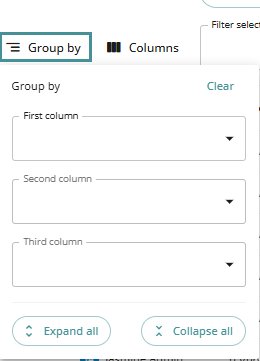
Group selections
The Group by function lets you organize data into categories.
Steps
- Click Group by
- Select a field (e.g. category)
- Optionally add up to three grouping levels
Options
- Expand or collapse all groups for better overview
Manage columns
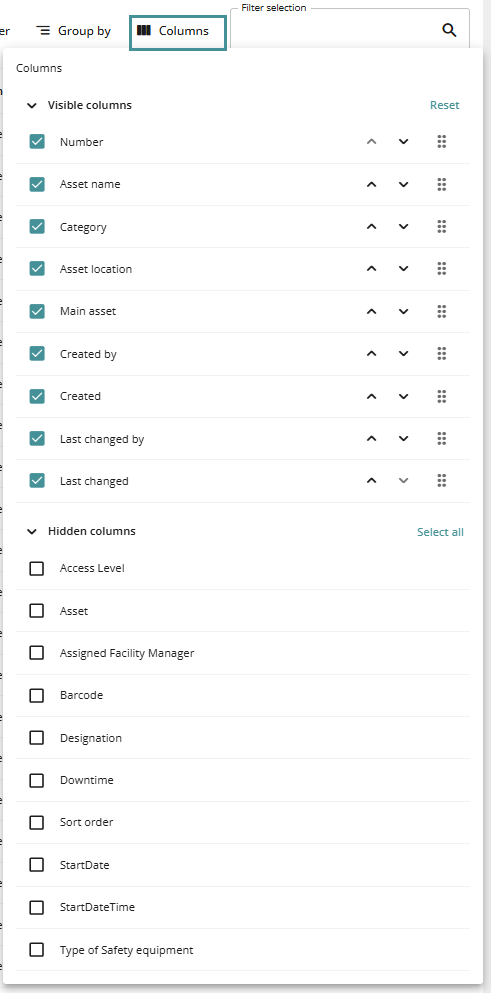
The Columns button allows you to customize your view.
Show or hide columns
- Use checkboxes to:
- Show columns
- Hide columns (moved to a hidden section)
Reorder columns
- Drag and drop columns, or
- Use arrow controls
Reset columns
- Click Reset to restore the default configuration
Built-in selections reset to their original system configuration.
Changes are applied instantly but only affect your personal view.
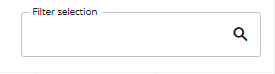
Filter by text
Use the text filter to quickly find items:
- Enter text in the filter field
- The system searches across all columns
- Matching results are displayed instantly
Sorting and resizing
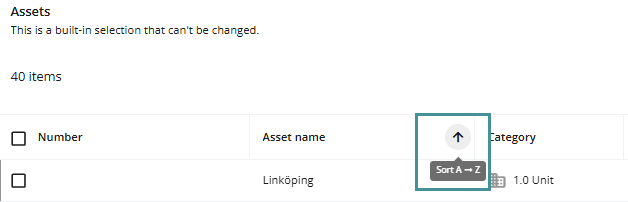
Sorting
- Click a column header to sort:
- Ascending (A–Z)
- Descending (Z–A)
Resizing
- Drag column borders to adjust width

Column width settings are saved for your personal view.
Row indicators and actions
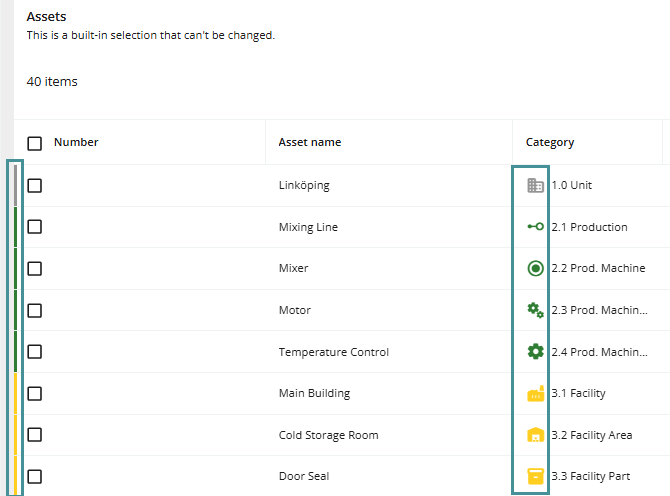
Color indicators
- Each row has a color based on its category
Context menu
- Access via:
- Hover menu, or
- Right-click
Available actions may include:
- Go to card
- Delete
Open and view cards
- Click a row to open the card in a side panel
- Most functionality is available directly in this view
Tabs that display selections are not available in split view.
To access full functionality
- Open the context menu
- Click Go to card
Close the card
- Click Close to hide the side panel
Mobile view
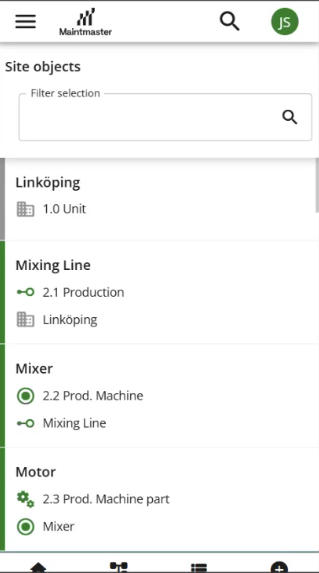
Selections behave differently on mobile devices:
- Displayed as tiles instead of rows
- No split view available
- Clicking an item opens the card in full screen
- Layout is not configurable
Important notes
- Changes to selections (filters, columns, grouping) are not saved globally
- Only administrators can save changes as a new selection
Troubleshooting
Changes are not saved
- This is expected behavior unless saved by an administrator
Cannot see certain tabs in card view
- Open the card in full view using Go to card
Missing data in grouped view
- Ensure groups are expanded