- Pareto Charts
- Automatic Potential Screening
- Maintenance Tips
- Root Cause Tips
- Additional Analysis Features
Pareto Charts
Before starting any analysis, you must choose the data area you want to evaluate.
Analysis is typically performed per machine.
Steps
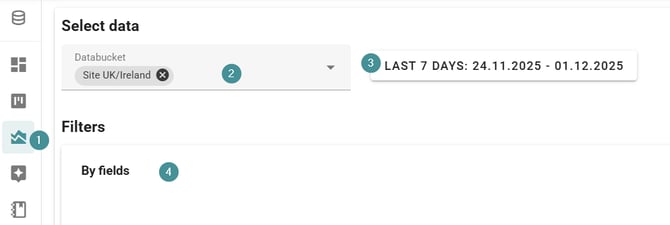
1. Open Analysis.
2. Select a Databucket / Line.
3. Choose a Date range.
4. Apply Filter fields, such as machine.
-
-
Additional filters may appear depending on the databucket and the selected period.
-
If certain filters do not appear, try increasing the date range.
-
A preview chart will display based on your selection.
You can click directly on the chart to select machines.
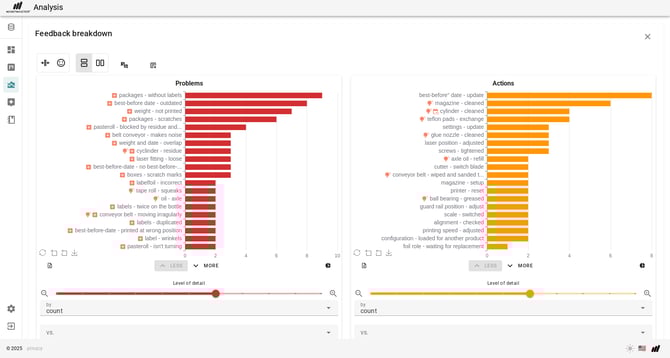
You will see the Pareto charts:
-
Red: Problems / Symptoms
-
Orange: Actions / Fixes
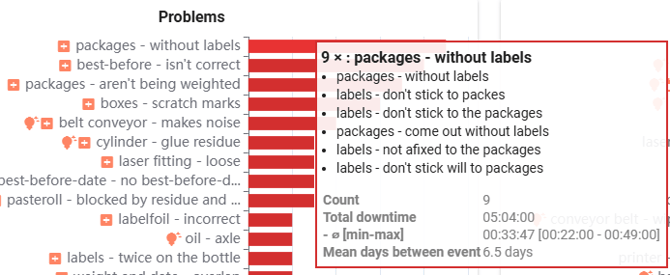
Hover over a bar to see more information.
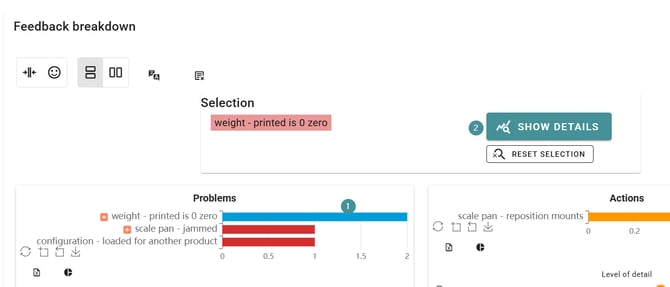
Click a topic group → press Details for deeper insights.
Advanced Pareto Options
-
Level: Adjust grouping detail with the slider.
-
Downtime: Switch bars to downtime-based visualization.
-
Summary: Shows how many topics are repeat occurrences.
-
Export: Export data to Excel.
Automatic Potential Screening
Automatic screening evaluates potential improvements per machine.
Steps
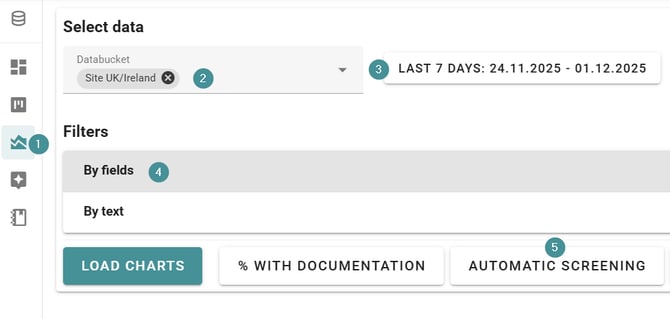
1. Open Analysis.
2. Select Databucket / Line.
3. Set Date range.
4. Filter by machine.
5. Click Automatic Screening.
The evaluation may take a few seconds.
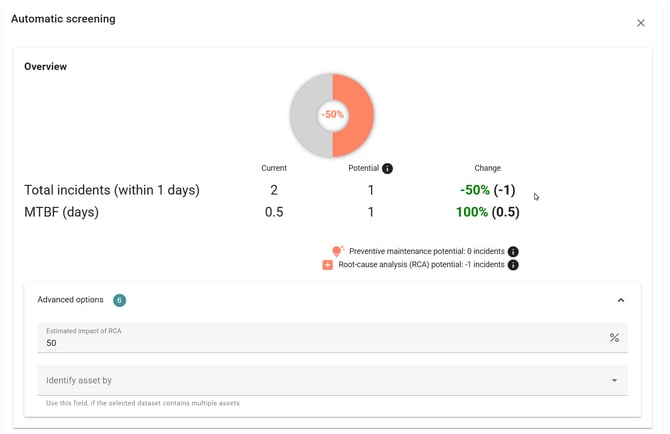
Screening results estimate:
-
Preventable stops through preventive maintenance
-
Recurring errors with documented clues
You can adjust the RCA impact (% value) in Advanced Settings.
Maintenance Tips (Preventive Maintenance)
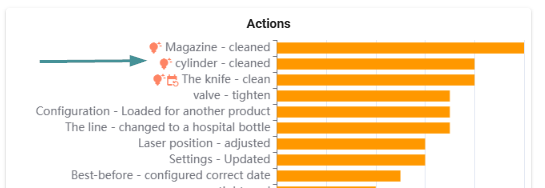
Maintenance tips appear on the orange Actions chart, marked with a lightbulb icon.
Click a tip to see:
-
How to recognize the issue
-
How to prevent it
-
Suggested maintenance intervals
Regular patterns are also indicated, helping identify ideal PM frequencies.
Root Cause Tips (RCA Support)
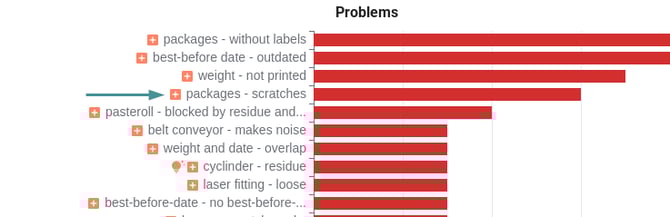
Recurring errors can be analyzed using the red and orange Pareto charts.
The red chart shows symptoms.
Click a problem → choose Show details.
In the details view you can see:
-
Focused Pareto charts
-
Breakdowns by SKU or other criteria
-
Timeline patterns
-
Grouped or listed comments
-
RCA clues (fixes taken earlier)
Use this to support 5-why or RCA meetings.
Additional Analysis Features
You can drill down into any Pareto bar to see more detailed information. The system generates only the charts and insights relevant to the selected problem, so the available charts may differ depending on the issue. You can also create your own charts on the dashboard.
View detailed information from a Pareto bar
1. Open the Pareto charts in the Analysis.
2. Click on any bar to open the detailed view.
The system will generate additional charts, breakdowns, and insights that are specific to the selected problem.
-
-
This is why some problems show more charts than others.
-
Only data relevant to the issue is displayed.
-