
Metafields
Filter fields appear in several MI views, such as:
-
Analysis
-
Team History
-
Dashboard
Set the display order
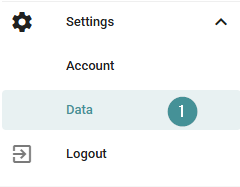
1. Open Setting → Data
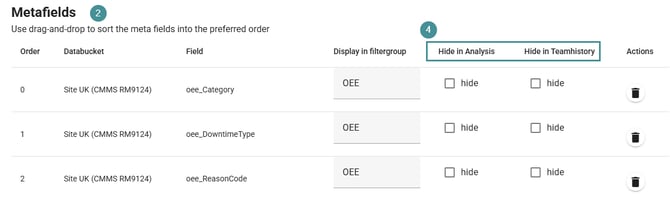
2. Navigate to Metafields.
3. Use drag and drop to change the order of the filter fields.
This allows you to bring the most important filters to the top.
4. Hide filter fields
-
Use the Hide option to remove a filter field from the Team History view.
-
Hidden filters are not available for selection, helping users focus on the most relevant fields.
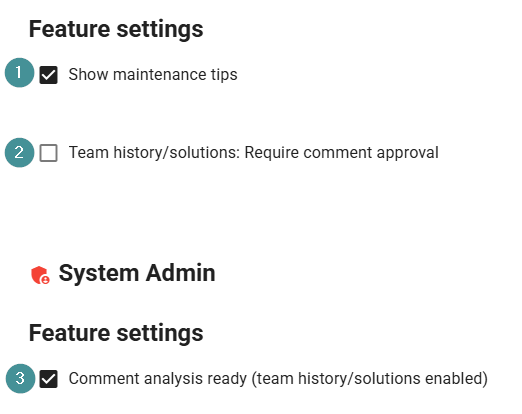
Feature settings
These settings are found under Setting → Data
1. Show maintenance tips
-
Enables proactive suggestions for preventive measures and RCA (root cause analysis).
-
Required for Automatic Screening to work.
-
When active, the system highlights potential improvements directly in the analysis.
2. Team history / solution: Require approval
-
Allows users to view Team History and Solutions.
-
This setting is typically turned off initially until enough text data exists for the AI to be trained.
-
Peoplegeist Support activates this in agreement with you.
3. Comment analysis ready (team history/solution enabled)
-
When enabled, troubleshooting tips must be manually approved before being visible to users.
-
Only approved solutions appear in search results and suggestions.
- Can only be activated by the support
These settings help you tailor MI to your workflow and ensure that your team sees the most relevant and validated information.