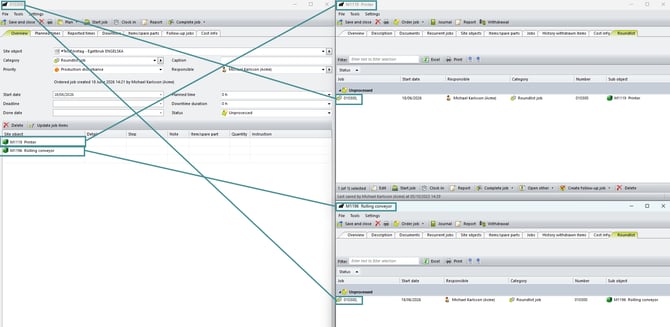
This setup can be used when users want easy access to round list elements associated with an object without opening the round list separately.
⚠️ Warning
Only a limited set of information can be displayed using selections on cards. Some round list data may not be available in this view
Create the Selection
- Create a new selection based on:
- Jobs → List of Round List Points
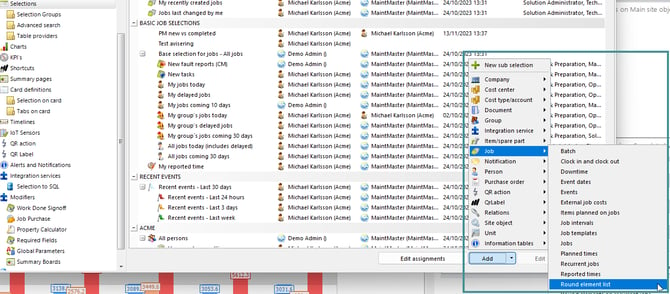
- Jobs → List of Round List Points
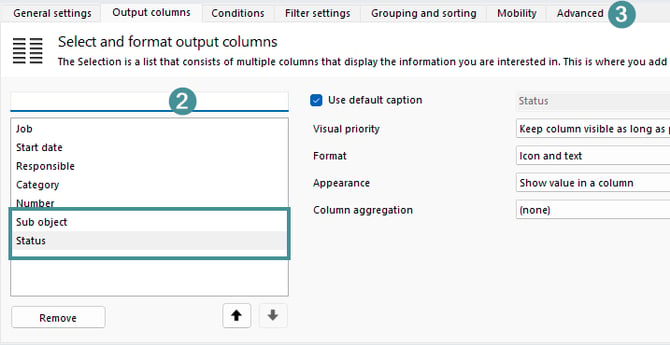
- Add the following output column:
- Underlying Object
- Status
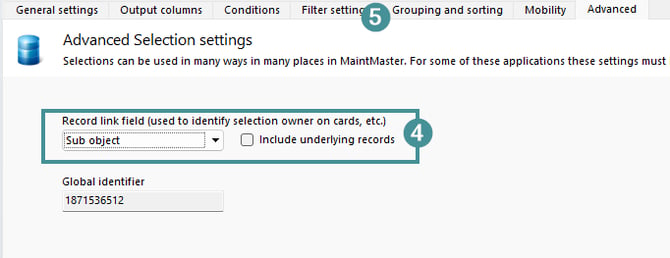
- Go the "Advanced" tab.
- In the Record Linking Field, select: Sub object
Make sure Include Underlying Records is not selected! - Go the "Grouping" tab.
- At "Grouping and Sorting settings", at Default grouping set "Status" as 1st column.
Also check the box for "Lock user to default grouping".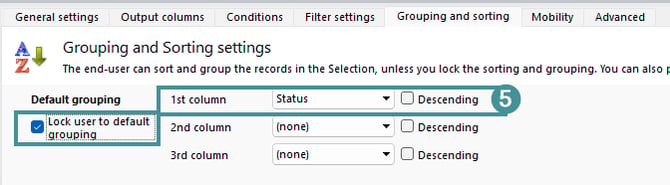
- Save and close the selection.
Add the Selection to the Object Card
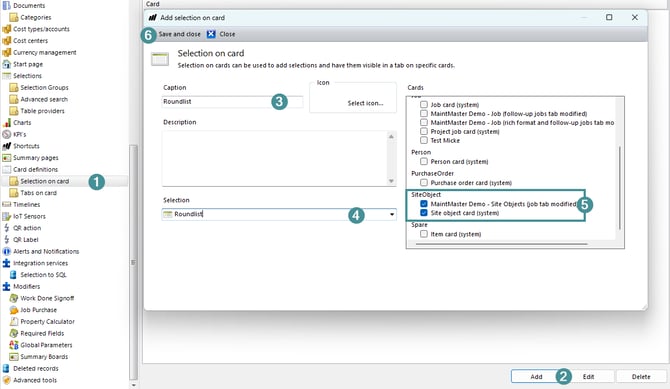
- Go to System Settings → Card Definitions → Selections on Cards.
- Click Add.
- Enter the name that should be displayed on the tab.
- Select the selection created in the previous section.
- Select the card types:
- Object
- Main Object
- Save and close the configuration.
Verify the Result
- Open an object card.
- Select the tab that was created.
- The view should display the round list points associated with that object.