When to use this
Use this when you, as an administrator, need to create a new property (data field) to store additional information on cards in CMMS 10.
Properties can be created in two ways:
Access System Settings
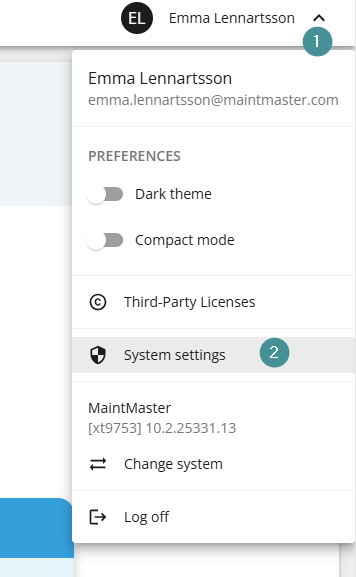
1. Click your name in the top-right corner.2. Select "System settings".
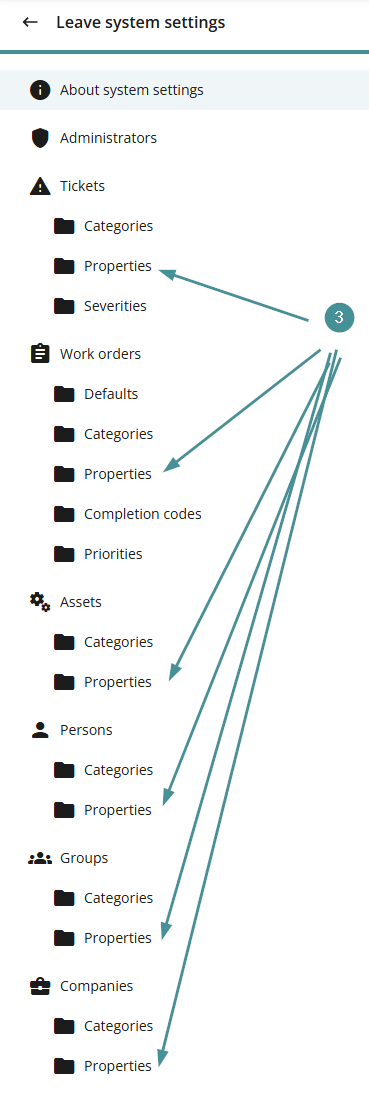
3. You will now see folders for different card types (for example: Groups, Assets, Companies).
Option 1: Create a property directly via a category
Example: Create a property for Groups
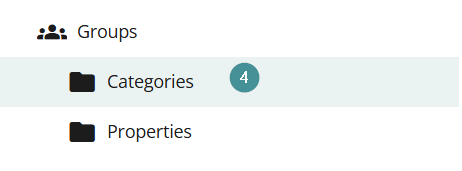
4. Go to Categories → Groups.
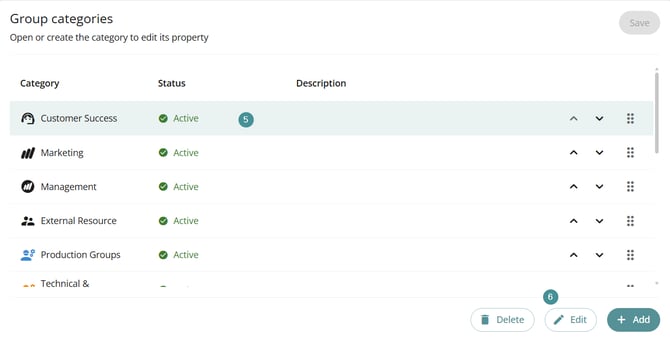
5. Select the category you want to add the property to (for example: Customer Success).
6. Click "Edit".
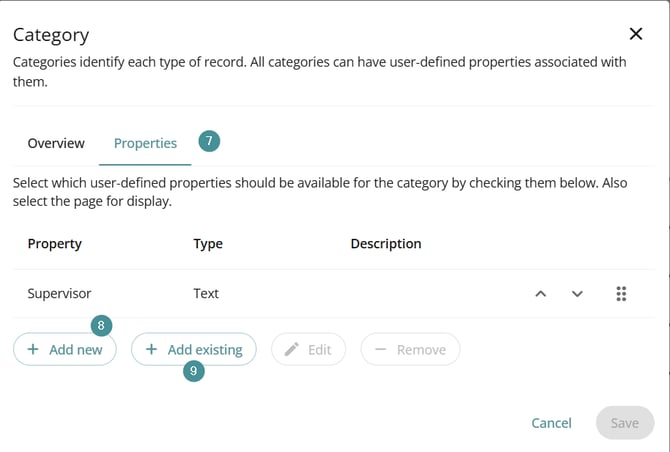
7. Open the Properties tab.
8. Click "Add New".
9. If the property already exists, choose Add existing instead.
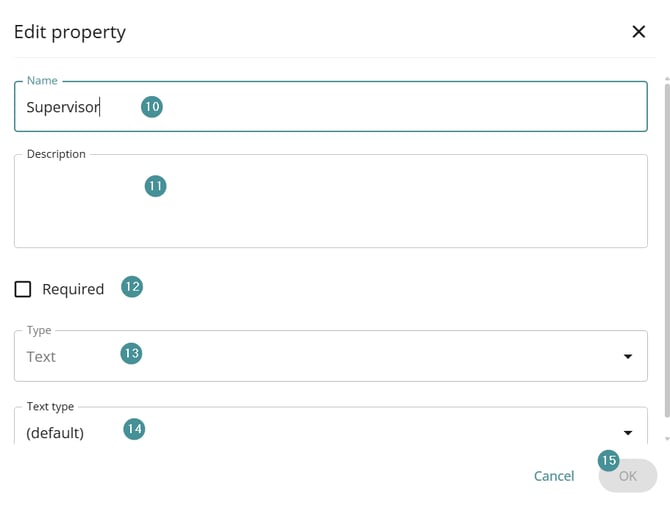
Fill in the property details:
10. Name – Name of the property
11. Description – What the property is used for
12. Required – Set to Yes if the field must be filled in
13. Type – Defines how the value is entered (text, number, date, list, etc.)
14. Text type – Defines formatting for text fields (E-mail, File, Web page)
15. Save
16. If you’ve made additional changes to the category, you may need to click Save on the category page.
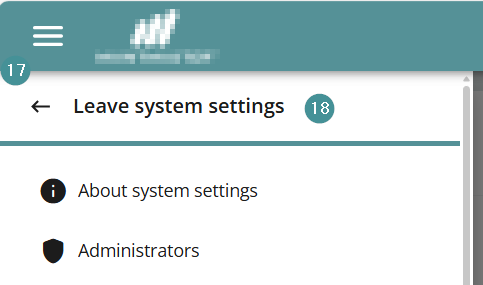
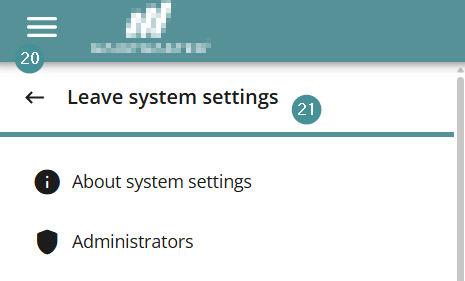
17. Select the hamburger menu in the top left corner
18. Choose "Leave system settings".
Verify the property
19. Open the hamburger menu on the left.
20. Open a Group card, via list,
21. or Search for your group.
22. Open the group card
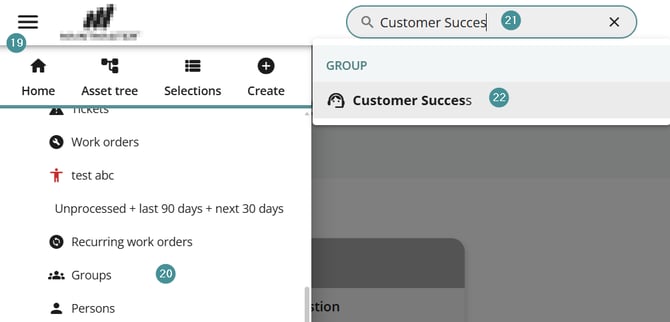
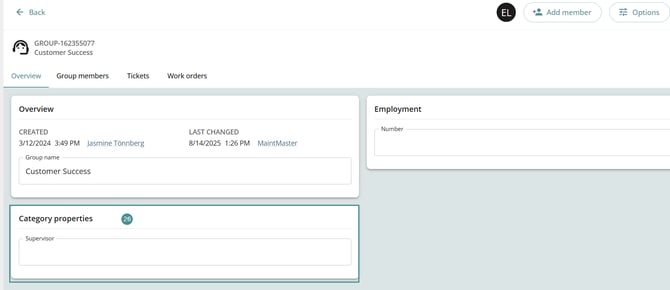
23. The new property is now visible on cards using that category.
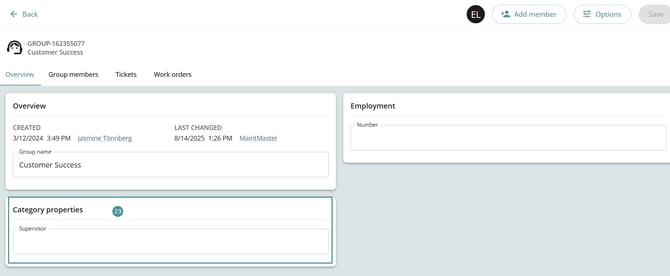
Create a property via the property list
Example: Create a property for Groups
1. Click your name in the top-right corner.
2. Select "System settings".
3. You will now see folders for different card types (for example: Groups, Assets, Companies).
4. Go to Properties → Groups.
5. Click "Add".
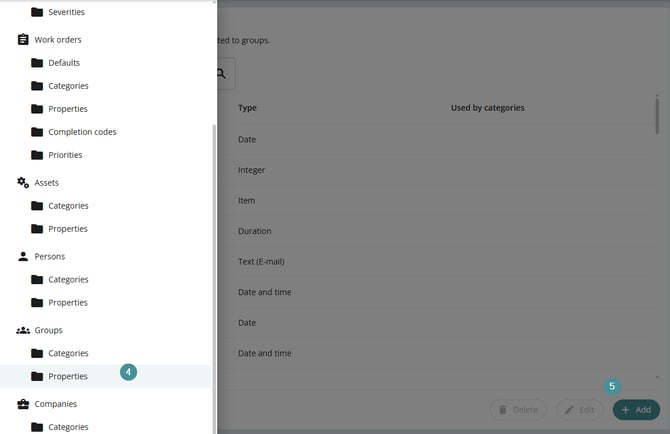
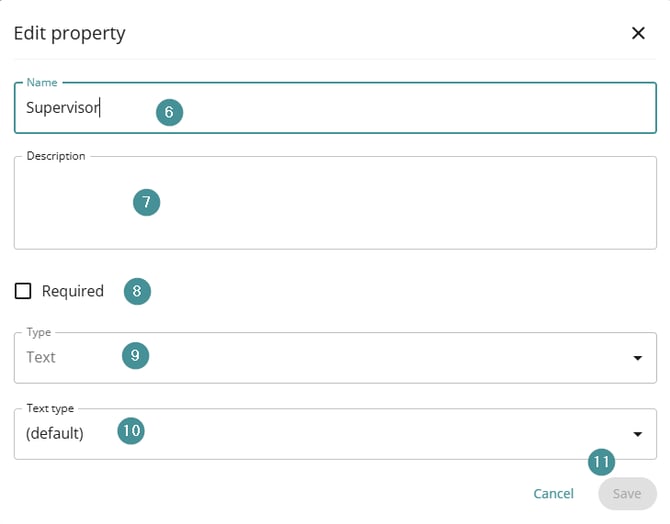
Fill in the property details:
6. Name – Name of the property
7. Description – What the property is used for
8. Required – Set to Yes if the field must be filled in
9. Type – Defines how the value is entered (text, number, date, list, etc.)
10. Text type – Defines formatting for text fields (E-mail, File, Web page)
11. Save
12. Open the hamburger menu on the left.
13. Go to Categories → Groups.
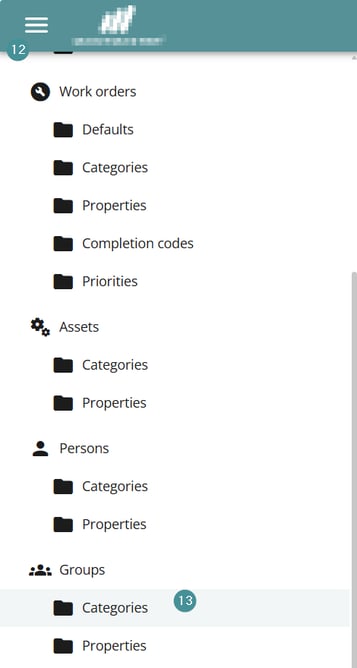
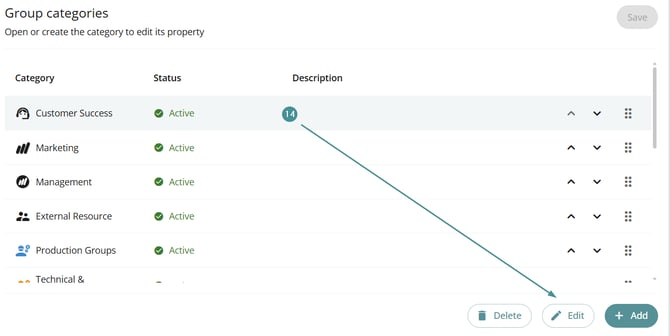
14. Select the category and click "Edit".
15. Open the Properties tab.
16. Click "Add existing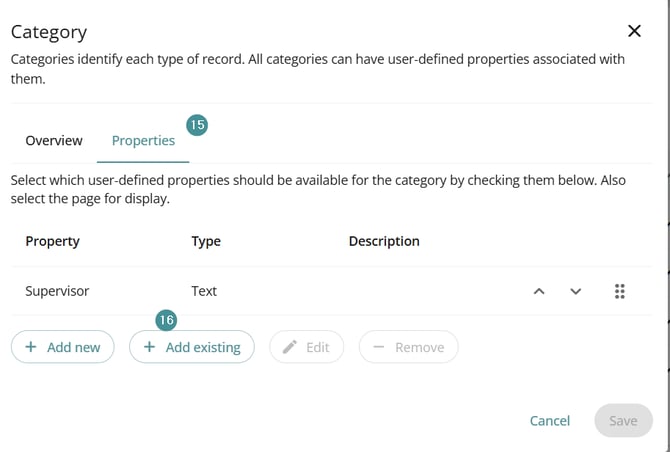
17. Find your property and select it.
18. Click "Add selected"
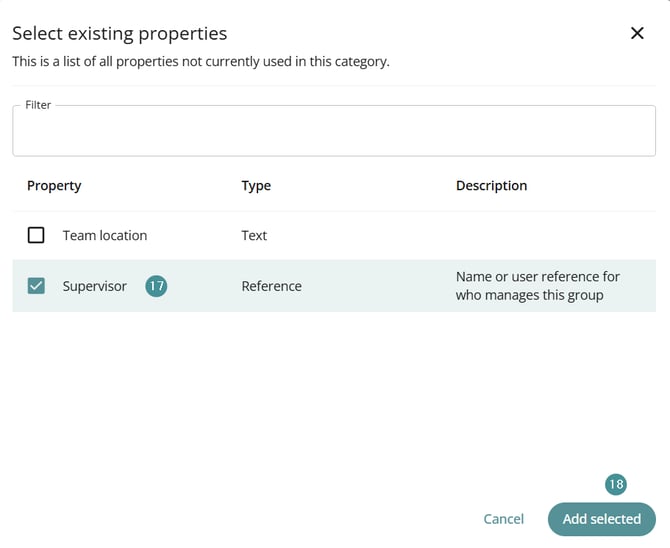
19. Click "Save.
20. Select the hamburger menu in the top left corner
21. Choose "Leave system settings".
Verify the property
22. Select the hamburger menu in the top left corner.
23. Either go to Groups if you have a selection for them
24. or Search for your group.
25. Open the group card
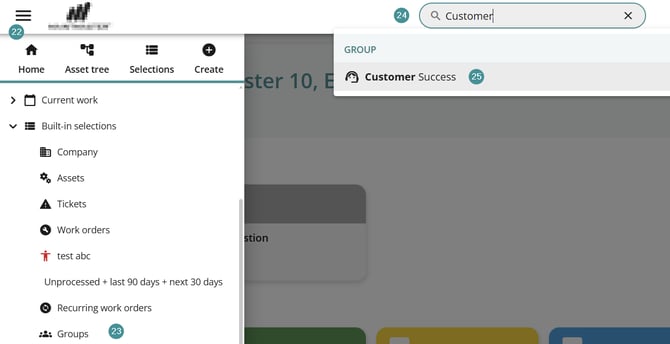
26. The property is now visible and ready to be used.