When to use this?
Use this guide when you, as an administrator, need to create a new company card for a supplier, partner, or other external organisation in CMMS 10.
Types of company cards
-
Owning company – the company that owns the system.
-
Created companies – for example suppliers, partners, or external organisations.
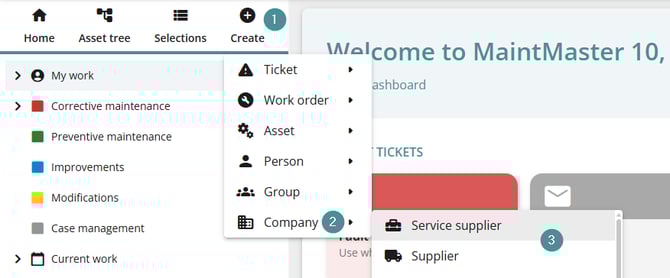
Create a company from the Create menu
1. Click "Create".
2. Select "Company".
3. Choose the company category.
Create a company from a selection
1. Click "Selections".
2. Choose a Company selection.
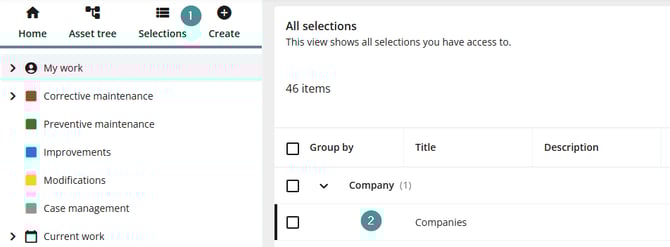
3. Click "Create company".

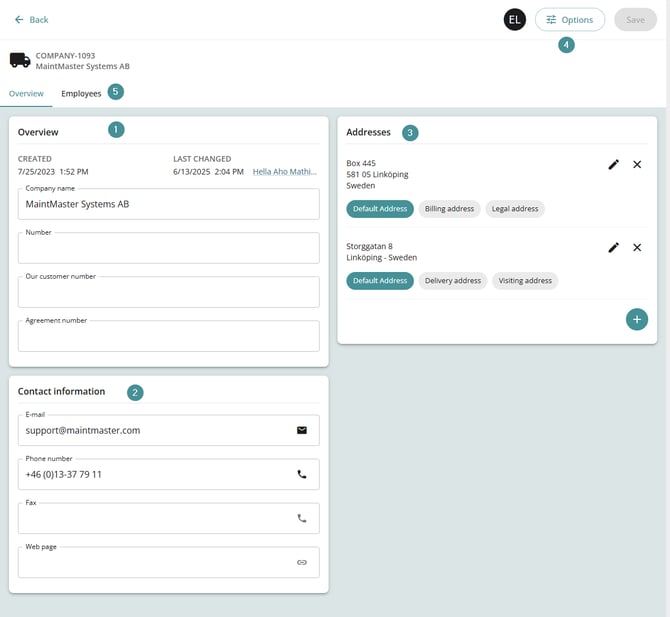
Fill in the company card
1. Overview
-
Fill in the fields as required (company name, identifiers, etc.).
2. Contact information
-
Enter contact details such as email and website.
-
Use the icons to quickly send an email or open the company’s website.
3. Addresses
-
Add one or multiple addresses.
-
Assign a type to each address (for example: invoice, delivery).
-
Use:
-
Pen icon to edit an address
-
Plus (+) to add a new address
-
X to remove an address
-
4. Options
-
Change the company category, or
-
Delete the company card.
5. Employees
-
View all users linked to the company card.