Adding and managing notes on charts
Notes help you write down meeting outcomes and track which topics are already being worked on.
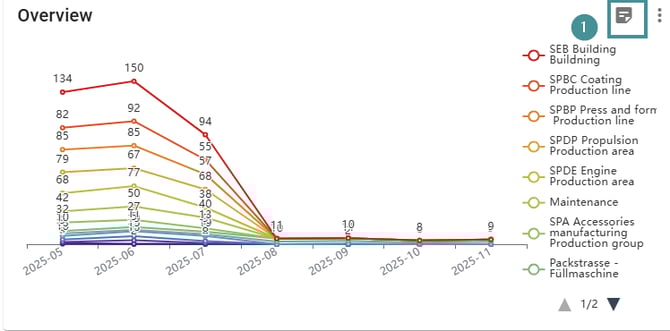
1. Open the dashboard. On the chart, click the note icon on the right side.
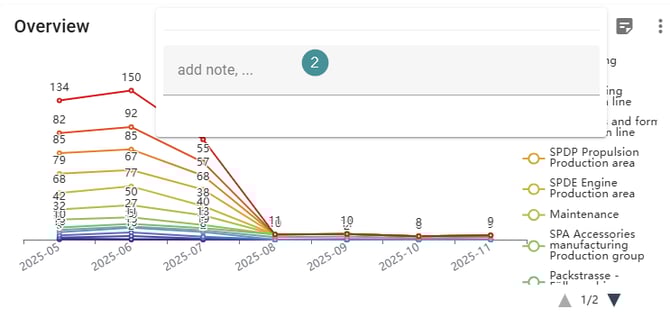
2. A side panel will open where you can add your note.
Notes and Kanban board
-
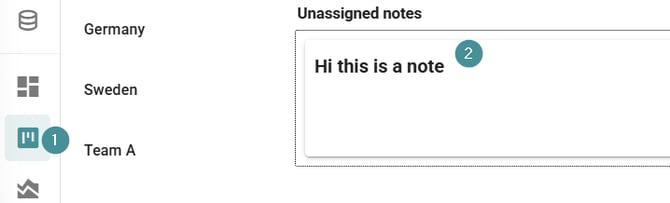
All notes added from charts will also appear on the Kanban board under Unassigned notes.
-
From there, you can assign them to departments or team members and manage them through your workflow.
Using notes ensures meeting decisions and improvement actions are captured and tracked clearly.