
Create a Kanban board
If no boards exist, the system will display a button to create your first Kanban board.
1. Open "Kanban". On the left side, you will see all existing boards.
Use the "plus icon" to create a new board.
2. Use the "Menu icon" to rename or delete a board.
3. New notes created on the dashboard (and not yet assigned) will appear here.
4. Create "Lanes" using the lane button.
We recommend one lane per department (e.g., Production, Maintenance, Engineering).
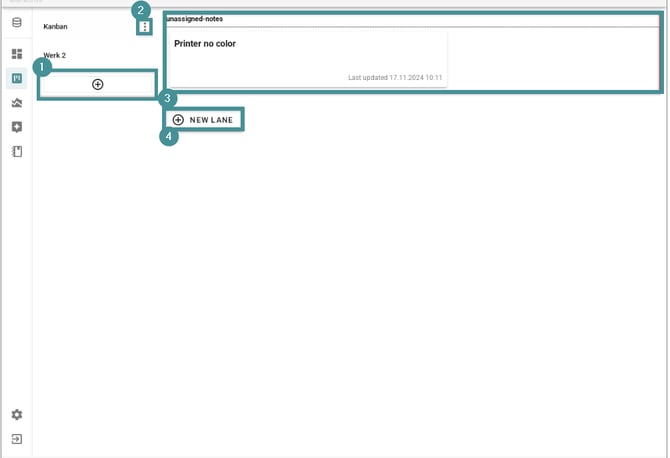
Notes created on the dashboard can be managed with the help of a Kanban board.
How to work with notes on the Kanban board
Example setup
In this example, there are two boards:
-
Kanban
-
Plant 2
Plant 2 includes three lanes:
-
KVP Manager
-
Production
-
Maintenance & Engineering
1. Manage notes
-
Each lane contains an area where notes are displayed.
-
Notes from the dashboard appear at the top.
-
Drag and drop notes into the correct lane using the mouse.
2. Edit notes
Click a note to open its detail form:
-
Assigned: Assign the task to a specific person if needed. If left empty, the department responsible for the lane handles it.
-
Comment: Add comments or event updates to document progress.
3. Create new notes
-
You can create new notes directly on the Kanban board.
-
This avoids switching back to the dashboard.
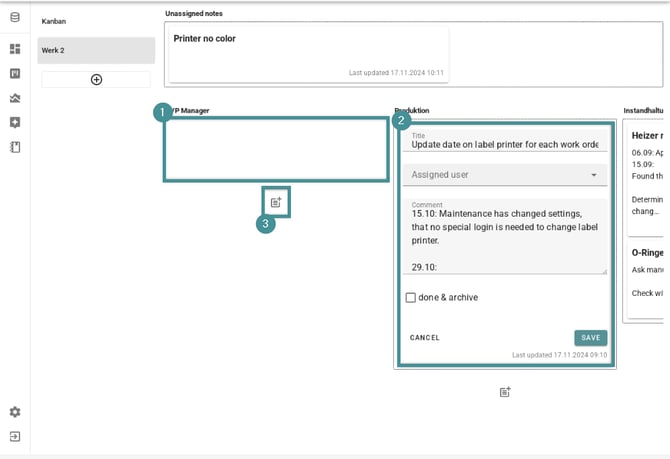
Purpose of the Kanban board
A Kanban board helps you clearly display responsibilities, progress, and status of improvement actions—especially those created in improvement meetings.