
What is required
(See How to Manually Input Quantity?):
-
Allow Override of Count = Set to Yes
-
When done Allow Override of Count = Set to NO
- Update order finish time by a min back, save and forward then save,
to recalculate order
Note\Warning: If Allow Override of Count is not set back to NO
then orders will no longer be processed.
Step By Step (Maintmaster OEE)
- In Maintmaster OEE, open the production run and click the Input quantity tab.
- Enter the corrected quantity per hour interval and click Save.
- Update order finish time by a min back, save and forward then save,
to recalculate order - Return to Maintmaster OEE Manager and set Allow Override of Count back to No, then save.
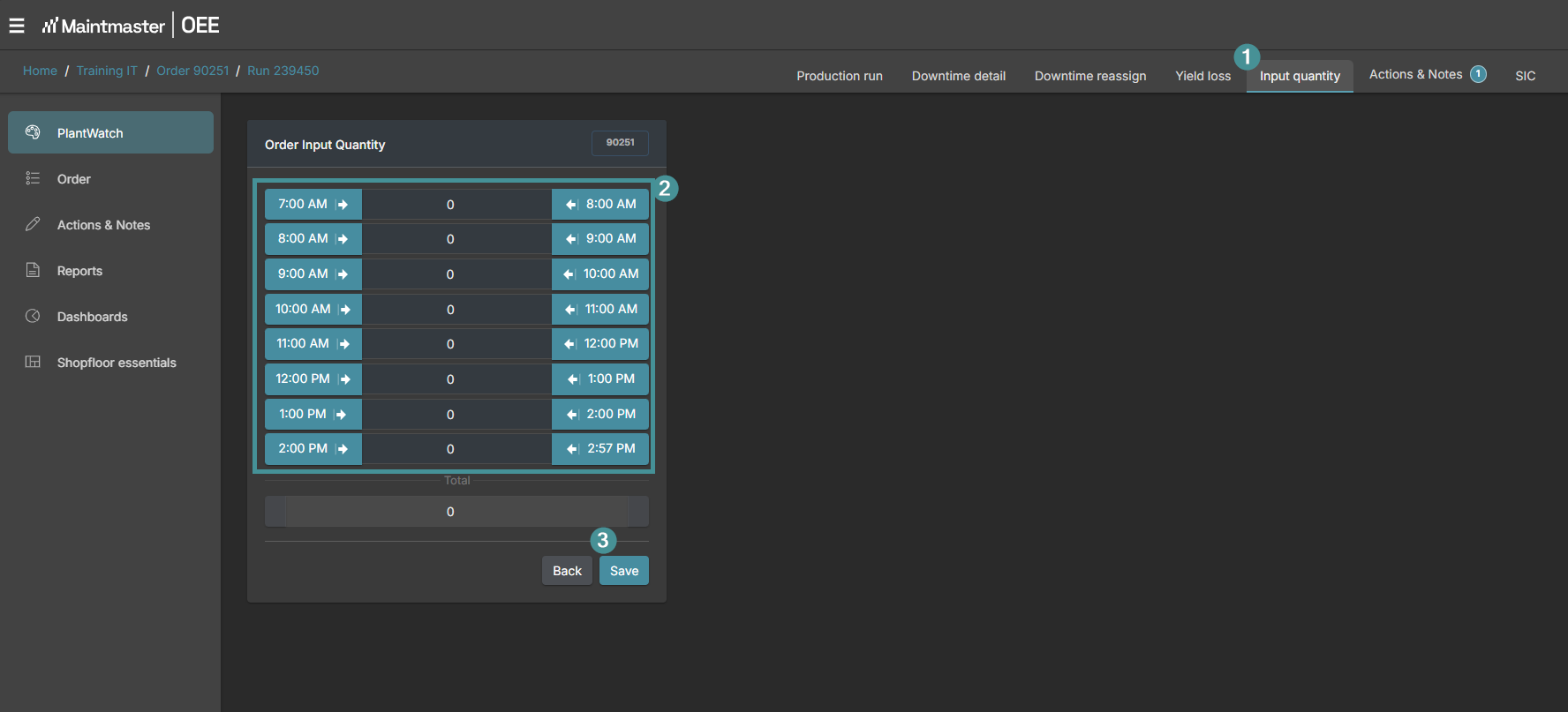
- We strongly recommend enabling the override only while you are correcting counts. Leaving it on prevents proper downtime reprocessing.
- Automatic downtime cannot be removed manually. Contact Maintmaster Support if a downtime needs to be removed.
- The same procedure is described from the Manager side in the article How to Manually Input Quantity?, in the Configuration part.