You can sign in to Maintmaster MI in three different ways:
The method you use depends on how your organisation is set up.
1. Maintmaster CMMS User
This login is used by customers who already have access to Maintmaster CMMS.
Steps:
-
Open the MI login page: https://mi.maintmaster.com/
-
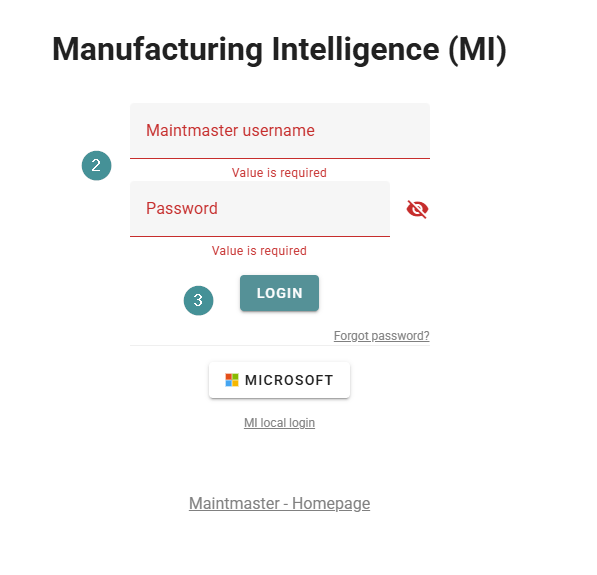
Enter your email and password — the same credentials you use for CMMS.
-
Click Login.
-
If your account has access to more than one MI tenant, you will be asked to select which one to open.
All CMMS users are automatically assigned the User role.
If you need a different role in MI, please contact your system administrator. -
You are now signed in.
OEE Customers (local login)
Who should use this login?
-
Users who do not have CMMS access
-
Users with a standalone MI account (created manually in MI)
-
Schools or special cases where CMMS login is not available
Steps:
-
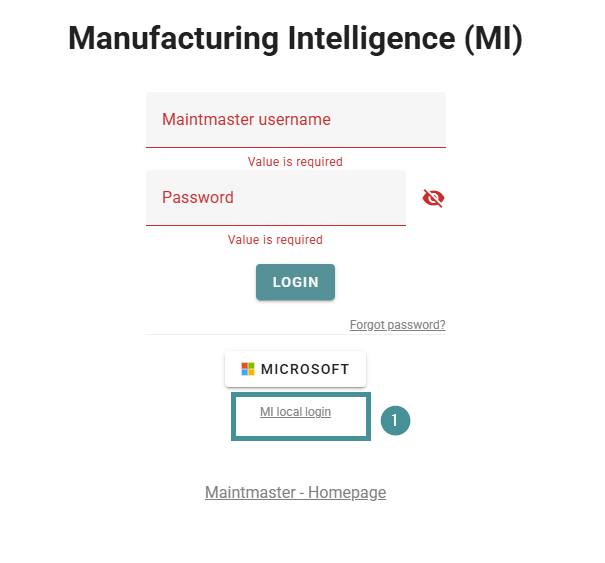
On the login page, click "MI Local Login".
-
Enter your local username and password.
-
Click "Login".
M365 Login
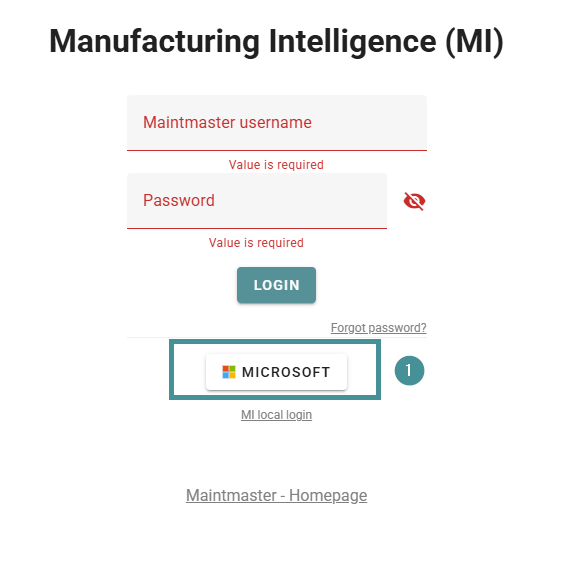
If your company uses Microsoft 365 and SSO is enabled, you can sign in using your company login.
Steps:
-
Click the "Microsoft login button" on the MI login page.
-
Sign in using your M365 company credentials.
-
You will be redirected into MI.
Note: M365 login must be approved by your IT department and enabled for your tenant.