
When to use this
Use this setup when maintenance should be triggered by usage (for example, running hours or produced units) rather than by a fixed calendar schedule.
Typical examples:
-
Service every 500 operating hours
-
Maintenance every 10,000 kilometers
-
Inspection every 50,000 produced units
About journal-based intervals
Each object in Maintmaster can use a journal to register values such as:
-
Hours
-
Kilometers
-
Produced units
You can enter values manually or automate the process through integration with a production monitoring system.
To use journal values to trigger recurring jobs, you must first create a job interval that is based on journal data.
Create a new job interval
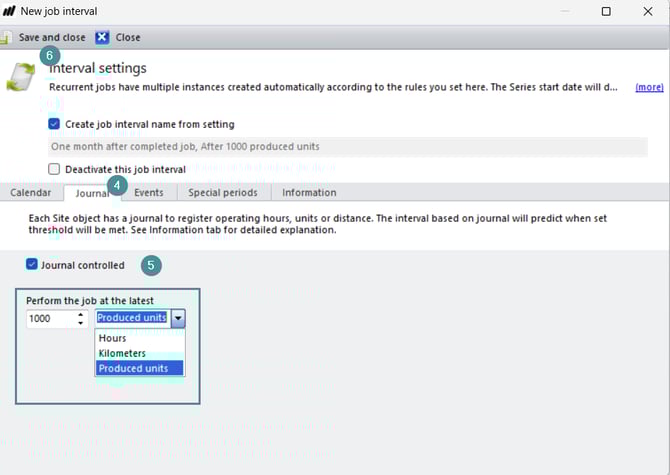
First, create a job interval that uses journal values instead of calendar time.
1. Go to Settings → System settings
2. Navigate to Job → Interval and click "Add"
3. On the "Calendar" tab, uncheck the calendar option.
4. Go to "Journal" tab.
5. Select the checkbox to enable journal usage.
6. Choose the journal type:
-
Hours
-
Kilometers
-
Produced units
7. Save and close
Create a recurrent job
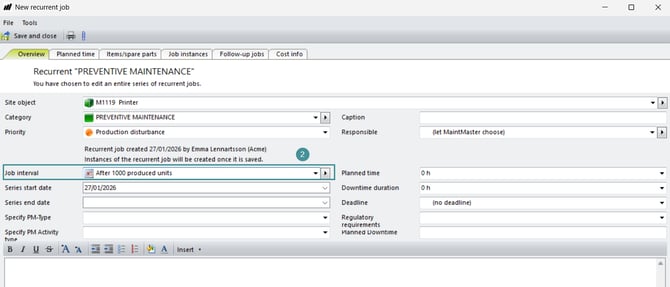
After creating the interval, you can assign it to a recurring job.
1. Select New recurrent job and the category you want to use for the job.
2. In the interval drop-down list, select your newly created journal-based interval.
3. Enter a caption and complete the remaining job settings.
4. Select the relevant site object.
5. Go to File → Save
For Maintmaster to calculate and create the next job instance based on journal values, the following is required:
-
At least three journal values registered on the object.
-
At least one completed job instance.
Once these conditions are met, the system can:
-
Calculate the expected next trigger point.
-
Automatically create a new job instance when a new journal value is registered.
If fewer than three journal values are registered, the system cannot calculate the next job instance.
Tip
Enter journal values regularly — even if the value is 0. Consistent reporting improves calculation accuracy.
Add journal values to an object
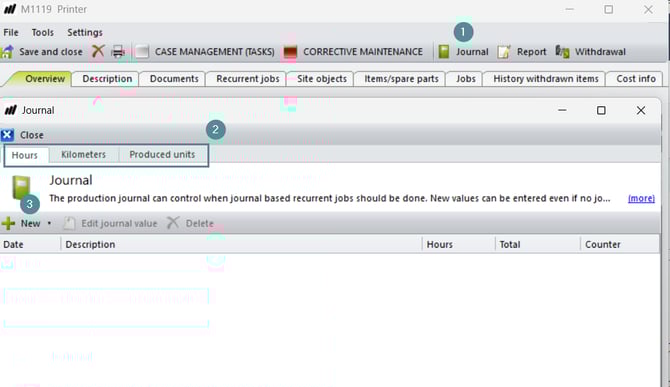
1. Open the relevant site object and click "Journal"
2. When you click the "Journal" button on the object card, you will be given three choices for journal value:
-
Hours
-
Kilometers
-
Produced units
3. Click "New" to register a value.
4. Close
Troubleshooting
The next job instance is not created
Possible causes:
-
Fewer than three journal entries are registered.
-
No previous job instance has been completed.
-
Journal values are entered irregularly.
Solution:
-
Register additional journal values.
-
Complete at least one job instance.
-
Ensure values are entered consistently (including zero values if applicable).
Wrong journal type selected
Issue: The job does not trigger as expected.
Solution:
Verify that the correct journal type (Hours, Kilometers, or Produced units) is selected in both:
-
The job interval
-
The journal entries on the object