
To see other users in the "Log in as" list, your Maintmaster account must have the "Advanced user" permission set. This is granted per user account and is activated by Maintmaster. An administrator of your system needs to contact Maintmaster Support to have it enabled.
Without this permission you can still tick the advanced options box, but the "Log in as" list only offers your own account and the "Permission" list only offers your regular permissions.
Impersonate a user
Log in to the admin client
1. Right-click on the MaintMaster icon on the Windows taskbar and select MaintMaster
2. Enter your username
3. Check the box “Sign in with advanced options”.
4. Click "NEXT"
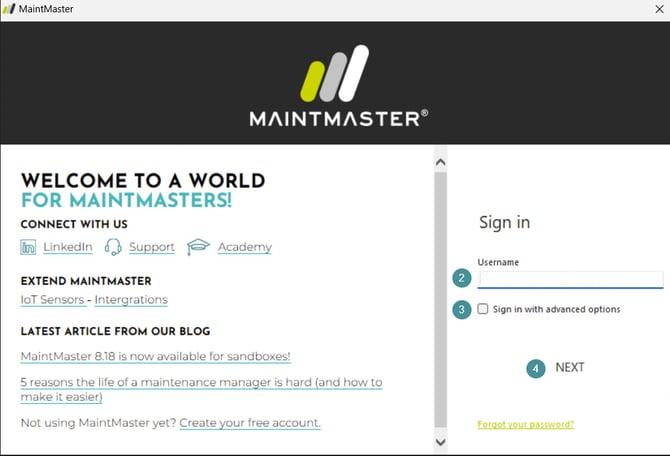
5. Enter your password
6. Click Sign in
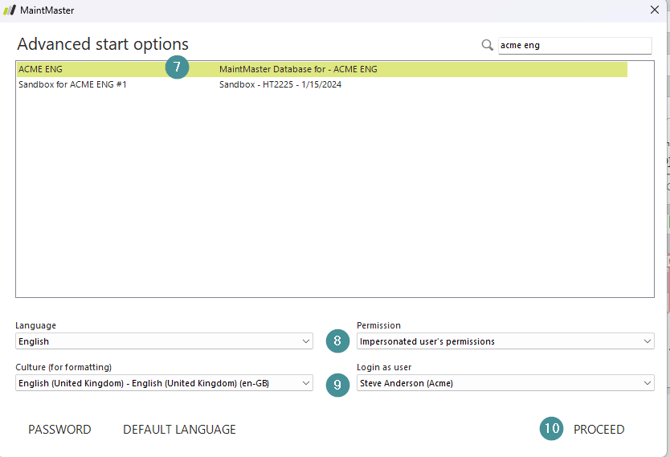
7. Find your training system at the top of the box and select it
8. Select Permissions and Full permissions (allows everything)
9. Select Sign in as and choose the user you want to sign in as.
10. Click Proceed
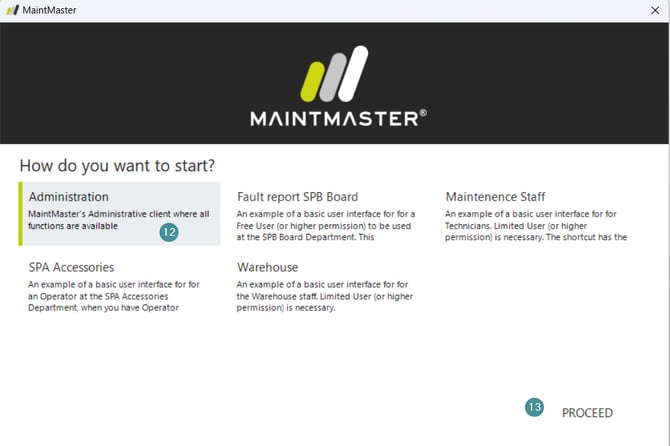
11. Select Administration
12. If needed enter a reason for using the advanced sign in option
13. Click OK
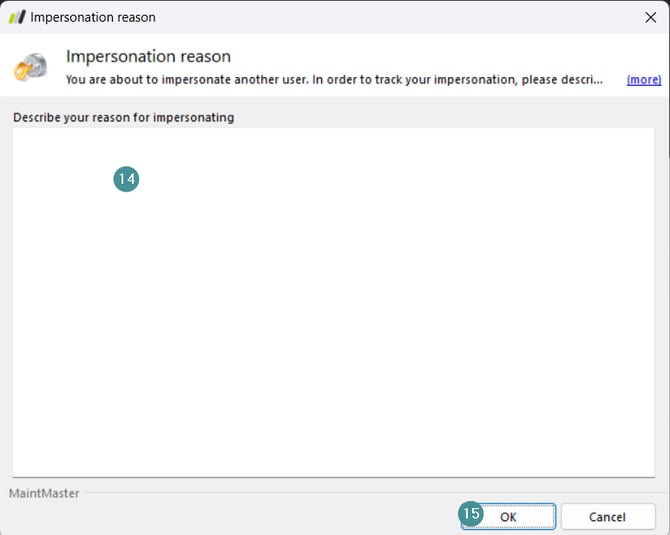
14. Specify why you're signing in as someone else. This is so that there is traceability as each person has their own account. During the training, you can enter whatever you want.
15. Click OK
16. Now you're logged in as the user you choosed in step 9.