
You can access the Edit function in three different ways: directly from the selection list, from a column header in the selection view, or through Settings > System settings > Selections. Editing a selection requires the appropriate user permissions.
When to use this
Use this guide when you need to change an existing selection, for example:
-
Adjust filter criteria
-
Add or remove columns
-
Update sorting or conditions
-
Correct a mistake in the setup
Edit a selection directly from the selection list
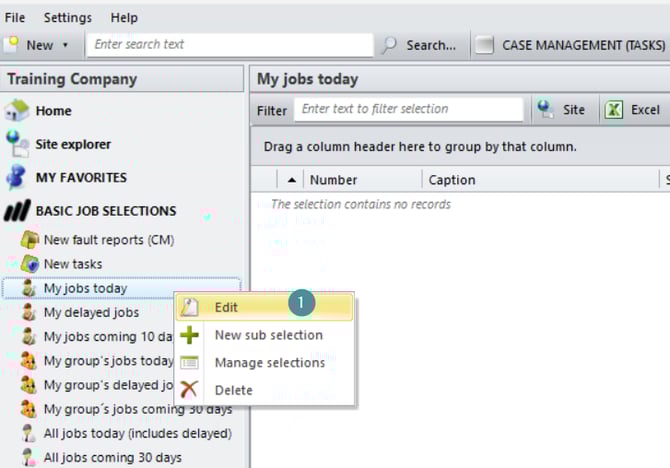
1. Right click on the selection and choose Edit.
Edit a selection from a column header
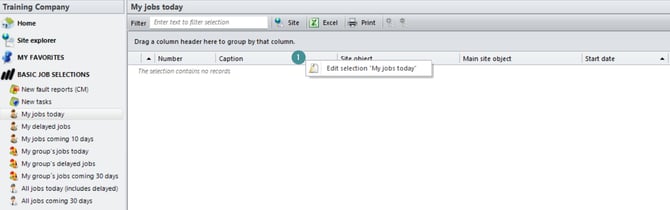
1. Right click on a column in the selection and choose "Edit selection"
Edit a selection from System settings
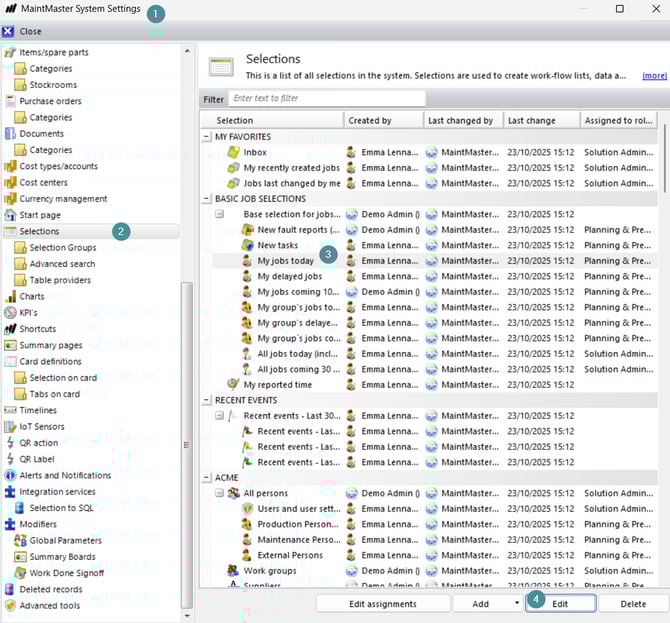
1. Go to Settings → System settings
2. Go to Selections
3. Choose your selection
4. Click "Edit"
Need Extra Help?
If you prefer assistance with setup or customization, you can purchase coach hours.
Our experts will help you configure your selection according to your specific requirements.