
When to use this
Use this guide when you need to:
-
Create a new group for users or resources
-
Organize users under a specific category
-
Assign a group such as External Resource to a user
Create a Group
Follow these steps to create a new group:
1. Go to New.
2. Select Group.
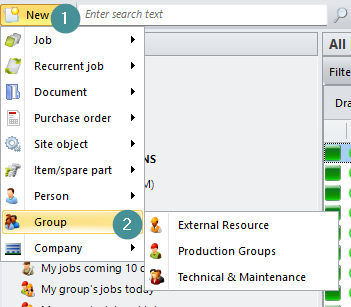
3. Choose an existing group category or create a new one:
- Click the arrow next to the Category field.
- Select New to create a new category if needed.
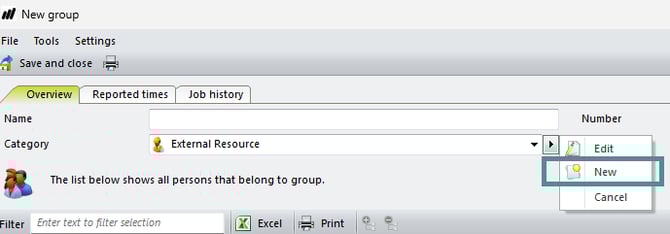
4. Set Type to External Resource.
5. Enter a Name, for example: External service.
6. Click Save and Close.
Assign a Group to a User
After creating the group, assign it to a user:
1. Open the person card for the relevant user.
2. In the Group column, select the group External service.
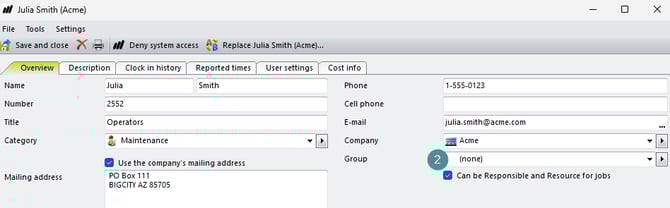
3. Click Save and Close.