
When to use this
Use this configuration when:
-
Your selection shows multiple instances of the same recurrent job.
-
You only want to see the upcoming (next) occurrence.
-
You want a clearer planning overview without historical or future duplicates.
Step 1: Add a selection join to the Job table
-
Go to Settings → System Settings.
-
Under Selection, choose "Table providers".
-
Select the "Jobs" table and click "Edit".
-
Click Add → Selection join.
-
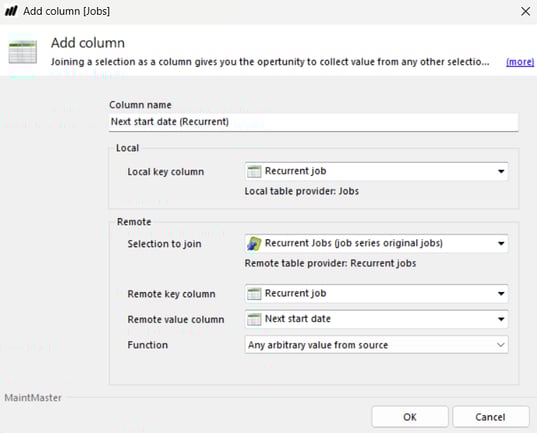
Fill in the following settings:
-
Column name: (Choose a clear name, for example: Next start date (Recurrent)) Tip: Use a clear column name so it is easy to identify when creating or editing selections.
-
Local key column: Recurrent job
-
Selection to join: Recurrent jobs (jobs series original jobs)
-
Remote key column: Recurrent job
-
Remote value column: Next start date
-
Function: Any arbitrary value from source
-
-
Click OK to save.
Step 2: Update your selection
-
Open the selection where you want to show only one instance of each recurrent job.
-
Go to the "Condition tab".
-
Add a new condition using the column you just created.
-
Choose "Compare with date column".
-
Select "Start date" as the date column to compare with.
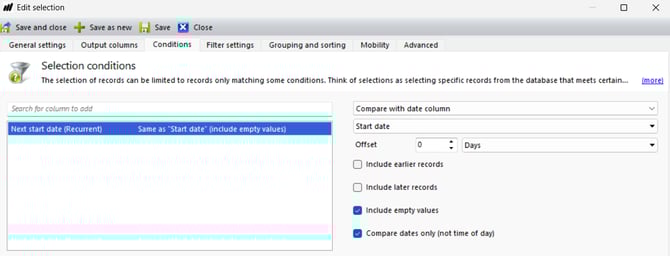
This ensures that only the job instance matching the next start date is included in the selection.
Result
Your selection will now display only one instance per recurrent job — the upcoming (next) job in the series.
Troubleshooting
The new column is not available in the selection
-
Make sure the selection join was added to the Jobs table (not another table).
-
Confirm that you saved the changes in System Settings.
Multiple instances are still shown
-
Verify that the condition compares the new column with Start date.
-
Check that no other conditions in the selection override the filter.
No jobs are shown
-
Confirm that the recurrent job series has a defined next start date.
-
Check that the selection does not contain additional restrictive filters.