
When to use this
Use this solution when you want to open an object in Maintmaster and quickly see the inspection round points linked to that specific object.
Create the selection
1. Go to Settings - System settings2. Create a new selection based on Job-Round element list
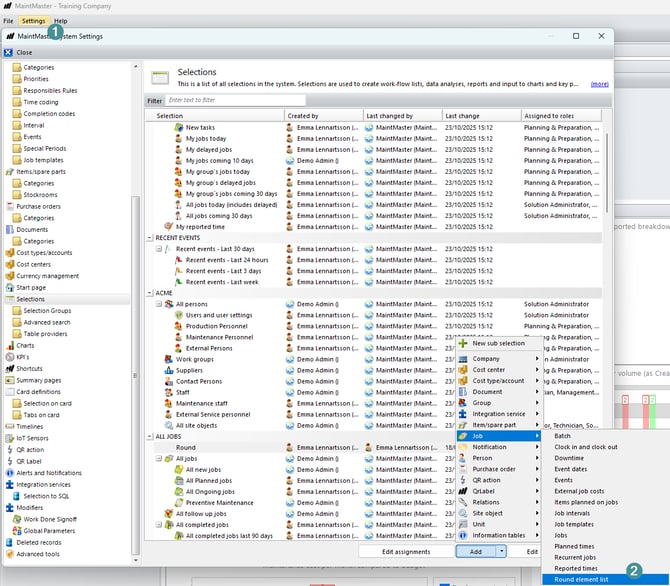
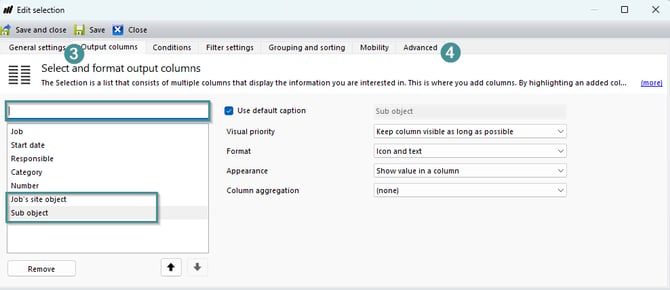
3. Add output columns Job´s site object and sub object
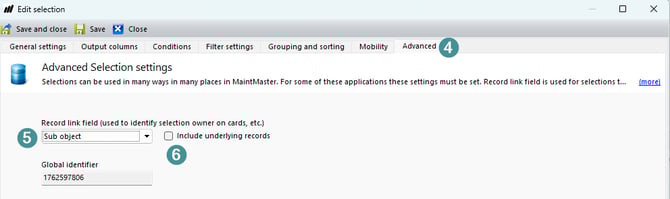
4. Go to tab Advanced
5. By Record link field add Sub object
6. Leave Include underlying records unchecked.
7. Save and close the selection
Add the selection to the object card
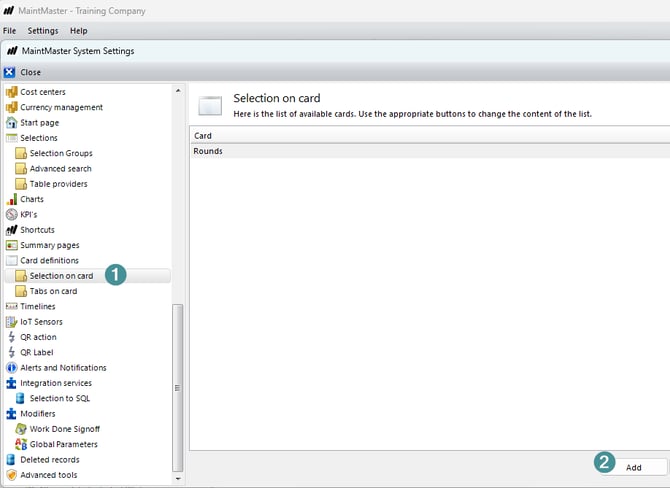
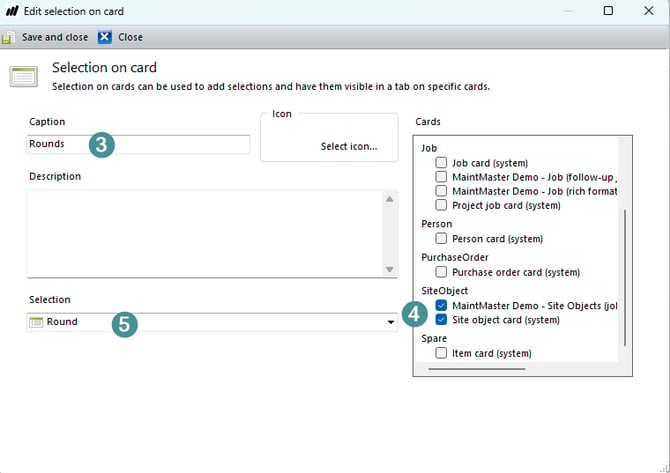
1. Go to System settings > Card definitions > Selections on cards.
2. Click Add. A new window opens.
3. Enter a name for the new tab.
4. Select the cards used for objects and main objects from the list.
5. Select the selection you created in the previous steps.
6. Save and close.
Result
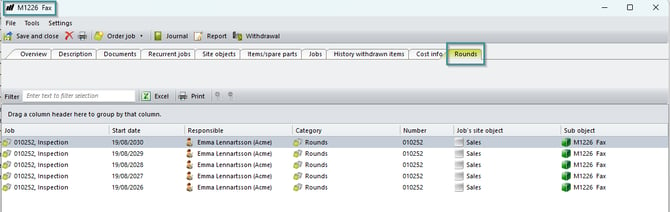
Open an object and go to the newly created tab. The view should now display the inspection round points linked to the current object.
Troubleshooting
If no inspection round points are displayed:
- Make sure Job's plant object is selected as the record linking field under the Advanced tab.
- Make sure Include underlying records is not selected.
- Check that the correct selection has been added under Card definitions > Selections on cards.
- Make sure the inspection round points are linked to the current object.