
When to use this
Use this feature when you want to create a new category for your items or spare parts, or when you want to deactivate an existing category.
Create a new category
Log in to the admin client
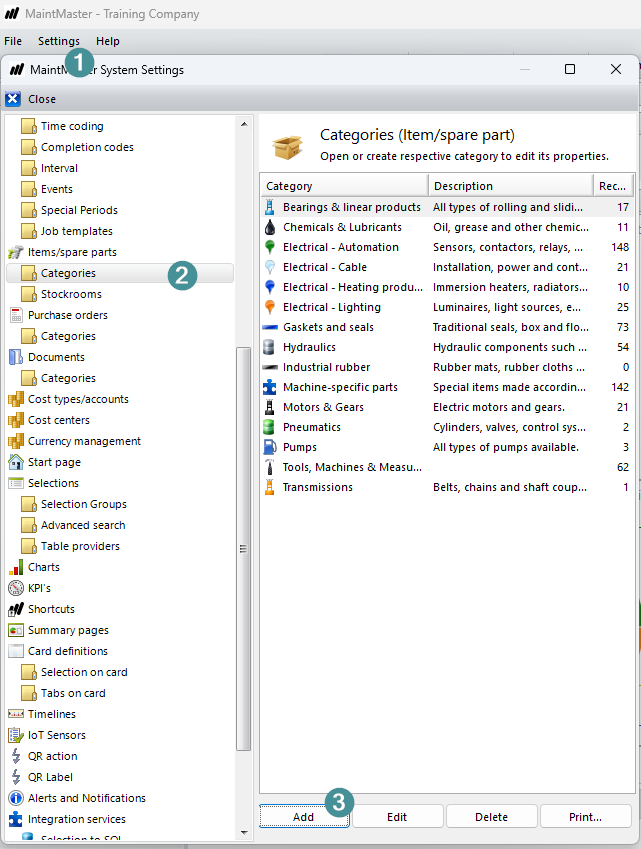
1. Go to Settings - System settings
2. Scroll down to Items/spare parts and choose Categories
3. Press Add
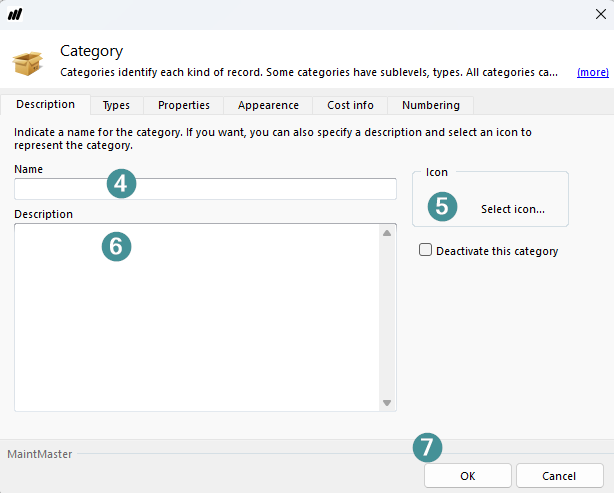
4. Choose a name for your category
5. Choose an Icon
6. If you need add a description
7. Press OK
Result
Now you have a new category to use for your Items/Spare parts
Deactivate a category
If you no longer want to use a category, you can deactivate it:
1. Go to Settings - System settings
2. Go to Items/Spare parts and Categories
3. Open the category you want to deactivate by clicking Edit.
4. Select Deactivate this category.
5. Save your changes.
The category is now deactivated and is no longer available for active use.