
When to use this
Use this guide when you need to:
- Access or change your personal user settings.
- Change the appearance using Dark theme or Compact mode.
- Find system information, such as the system key or system version.
- Access System settings as an administrator.
- Switch between systems or log out.
Overview of the header user menu
In the top-right corner of the system, you will find the user menu under your name.
From this menu, you can:
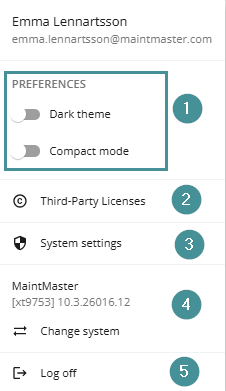
View your user information
At the top of the menu, you will see the name and email address of the currently signed-in user.
If you click your name or email, your person card will open.
Here you can view and manage information related to your user account.
Preferences
The Preferences section allows you to adjust certain settings for your own user.
These settings only affect your personal user experience.
Dark theme
Enable Dark theme to switch the interface to a darker color scheme.
This can make the interface easier to use in low-light environments.
Compact mode
Compact mode reduces the height of:
-
Input fields
-
Selection rows
This allows more information to fit on the screen.
Compact mode only affects your own user view and does not impact other users.
Third-Party Licenses
This option opens a page where you can view information about third-party licenses used in the system.
System settings (Administrator)
If you are an administrator, you will see the System settings option in the menu.
From here, administrators can configure system-wide settings.
If your user does not have administrator permissions, this option will not be visible.
System information
This section shows important information about the system.
Here you can find:
-
System key
-
System version
If your organization has access to multiple systems, you can also switch between systems from this section.
Log off
Select Log off to securely sign out of the system.
Always log off when using a shared computer to prevent unauthorized access.