
OPC Properties explained
Warning\Note: Take snapshots of the settings before any changes but If you are unsure what settings should be set for your Work Centre\Line contact Maintmaster support.
Where to find it: Plant Config › Work Centres › a work centre › OPC Properties
OPC Properties tells Maintmaster OEE where a work centre's machine data comes from, and how that raw signal is turned into downtime records and production counts. The settings apply to one work centre only (Below screenshot is an example only of the settings).
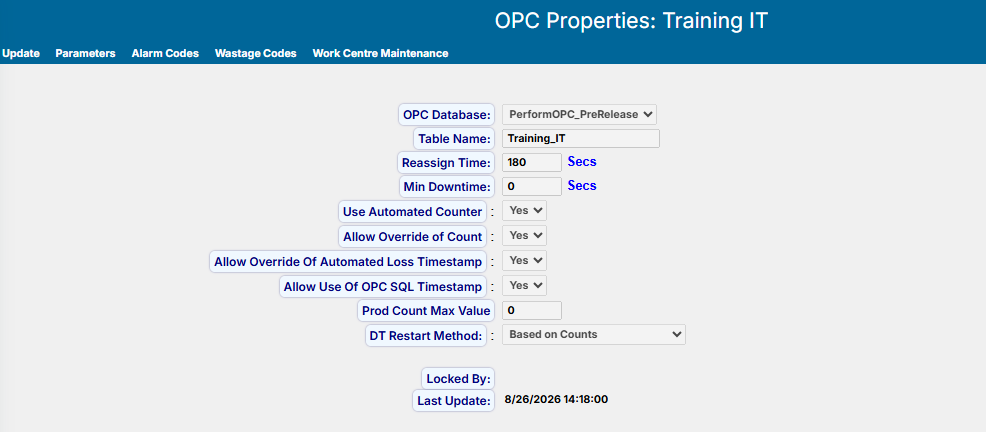
Screenshot above is an example only. Do not set the same setup if they are not supposed to be.
Audience. This is the complete internal reference for support and project managers. Each setting below is tagged COMMISSIONING where it is set once during setup and should not be touched afterwards, SITE SETTING where a site may reasonably adjust it, and INTERNAL where only we should change it. A customer facing version would keep only the site settings and drop most of the rest.
Administrator access is required. The screen opens read only. Select Update to enable the fields, make the change, then select Save. Selecting Cancel discards the change and releases the record.
Before you change anything
- Changes apply from the moment they are saved. They do not rewrite history, so figures from before the change stay as they were.
- Anything that changes which stops are recorded will show as a step change in your OEE trend on the date it was applied.
- If Locked By shows a name, another user has the record open. Wait rather than forcing the change.
The settings, one by one
-
OPC Database · commissioning:
Which PerformOPC database this work centre's machine data is read from. Set during commissioning. Changing it moves the work centre to a different OPC server and rebuilds its OPC objects, so it is not a routine edit.An automated work centre must have a database selected here, otherwise the incoming data has nowhere to go and nothing works.
-
Table Name · commissioning:
The table inside that OPC database holding this work centre's data. It must be unique within the database and may contain only letters, digits and underscores. Also set during commissioning.
-
Reassign Time seconds · site setting:
How long a stop must last before operators are asked to give it a reason. Only stops longer than this value are placed on the Downtime Task List on Order Detail, and in the Unassigned view of Downtime Reassign.
It changes nothing about what is recorded and nothing about OEE. It only controls what is put in front of people. A stop appears once the line restarts, not while it is still down, and it stays on the list until someone assigns it. -
Min Downtime seconds · site setting
The shortest stop that is kept in the OEE data. The stop is created as normal while the line is down. When it closes, if it turned out shorter than this value, the record is removed from the OEE side, so it appears on no screen and in no report.
The underlying machine record is not deleted. The entry on the OPC side is kept and flagged so it is not processed again, which means the raw data still exists and could be brought back in if it were ever needed.
Set to 0 to keep every stop. Time lost to a removed stop does not vanish from OEE, it lands in rate loss instead of appearing as a downtime event.
Recommended setting: 0. A value above zero makes the system remove downtimes, so that lost time reappears as rate loss instead, and a site running at 30 seconds will see a great deal more of it. A downtime is something people can act on, because it carries a reason and a duration. Rate loss carries neither. Keep Min Downtime at 0 unless there is a specific reason not to.
-
Use Automated Counter yes / no · commissioning
Whether production counts for this work centre arrive automatically from the machine. Set to No where quantities are entered by hand instead, as on a fully manual work centre.
Pair it with the OPC Database. Whenever an OPC Database is selected, this should be Yes. Leaving it at No with a database selected is an easy setup mistake and stops the automatic counts being used. -
Allow Override of Count yes / no · site setting
Whether a user is allowed to type over the automatic production count on an order. Useful where the counter is known to miss product, but it means the reported quantity is no longer purely what the machine measured. -
Allow Override Of Automated Loss Timestamp yes / no · site setting
Whether a user can adjust the start and stop times on a loss the system recorded automatically. Leave this at No where the automatic timestamps have to stay untouched for validation reasons. -
Allow Use Of OPC SQL Timestamp yes / no · internal
Whether events are stamped with the time from the OPC SQL server rather than the time supplied by the OPC client. Set to Yes where the client machine's clock cannot be relied on. -
Prod Count Max Value count · commissioning
The highest value the machine's production counter reaches before it rolls back to zero. When the counter wraps, the system uses this figure to work out how much was really produced instead of reading the drop as a loss.
Leave at 0 if the counter does not roll over. With 0, the first reading after a wrap is taken at face value as the quantity produced. -
DT Restart Method choice · commissioning
How the system decides a stop has ended and the line is running again.
Based on Counts is the normal choice: the stop closes when the counter starts moving again. Based on Surrounding Alarms closes the stop from the alarm states around it, for machines where counts are not a reliable restart signal. Based on Original Logic is the legacy handling, kept for older installations. -
Locked By read only
Shows a user name while someone else has the record open for editing. -
Last Update read only
When these properties were last saved.
How Min Downtime and Reassign Time work together
These two are the settings most often confused, because both are in seconds and both sit next to each other on the screen. They act at different moments and they do different jobs. Every stop passes the first one, then the second.
|
Order |
Setting |
The question it asks |
If the answer is no |
|
First |
Min Downtime |
Is the stop longer than the value? |
The stop is removed from the OEE data when it closes. |
|
Second |
Reassign Time |
Is the stop longer than the value? |
The stop is recorded, but nobody is asked about it. |
Min Downtime decides what exists. Reassign Time decides what gets asked about.
Worked exampleTake a work centre configured with Min Downtime 30 secs and Reassign Time 120 secs. Four stops occur during the shift, and each is treated differently:
|
Stop |
Length |
Min Downtime |
Reassign Time |
What the site sees |
|
A |
12 s |
Removed |
Not reached |
Not in the OEE data. The lost time shows up as rate loss. |
|
B |
45 s |
Kept |
Below 120 s |
Recorded and counted in OEE. Visible on Downtime Detail. No operator prompt. |
|
C |
2 min 30 s |
Kept |
Above 120 s |
Recorded, and listed on the Downtime Task List for a reason. |
|
D |
18 min |
Kept |
Above 120 s |
Recorded, and listed on the Downtime Task List for a reason. |
Stops B and C are both real downtime in the data. Only C is put in front of an operator.
What changes if Min Downtime is set to 0With Min Downtime at 0, nothing is removed any more, so stop A is now kept as well. It counts in OEE and appears on Downtime Detail and on the Order Detail chart alongside every other stop.
Stop A still does not reach the Downtime Task List, because 12 seconds is not longer than the Reassign Time of 120 seconds. Operators are asked about exactly the same stops as before.
This is the point that causes most confusion. Lowering Min Downtime makes short stops appear on screen, which can look as though the system has started demanding a reason for every stop. It has not. Reassign Time governs the Downtime Task List and the Unassigned view of Downtime Reassign only. Downtime Detail and the chart on Order Detail list every recorded stop whatever its length.
Quick reference
|
Setting |
Unit |
Decides |
Affects OEE figures? |
|
Min Downtime |
seconds |
Whether a stop is kept at all |
Yes |
|
Reassign Time |
seconds |
Whether operators are asked for a reason |
No |
|
Machine No Alarm Time Out |
milliseconds |
Whether a no count gap becomes a stop at all |
Yes |
Machine No Alarm Time Out is not on this screen. It lives under OPC Config, OPC Counters, and it is set in milliseconds, so 60 seconds is entered as 60000. It is included here because the idle downtime it raises is normally reassignable, so it works together with Min Downtime and Reassign Time to decide what reaches an operator.
Things worth knowing
- The comparisons are exact. A stop lasting exactly as long as Min Downtime is kept. A stop lasting exactly as long as Reassign Time does not appear on the Downtime Task List. Only stops longer than the value do.
- Reassign Time also needs the reason to be reassignable. A stop only reaches the Downtime Task List if its downtime reason is marked as reassignable. Where machine alarms are mapped to a reason, stops are assigned automatically and no one is prompted.
- Min Downtime removes from OEE, not from the machine data. Stops below the value are taken out of the OEE side once they close, but the record on the OPC side survives and is simply marked not to process. Reporting will not show them, and reinstating them is a job for Dev rather than a setting change.
- Both fields accept whole seconds only. The screen rejects decimals and negative numbers.