When to use this
Use this procedure when:
- Updating DigiRail firmware to access new configuration options.
- Preparing a DigiRail device for use with Maintmaster OEE.
- Updating device input settings after a firmware upgrade.
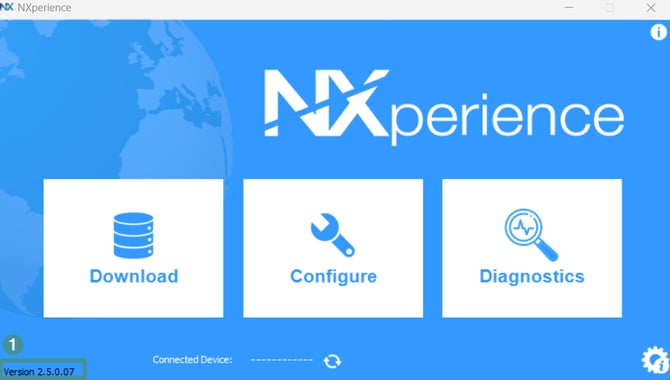
Verify the Nxperience Version
Check that your installed version of Nxperience is 2.4.0.01 or newer.
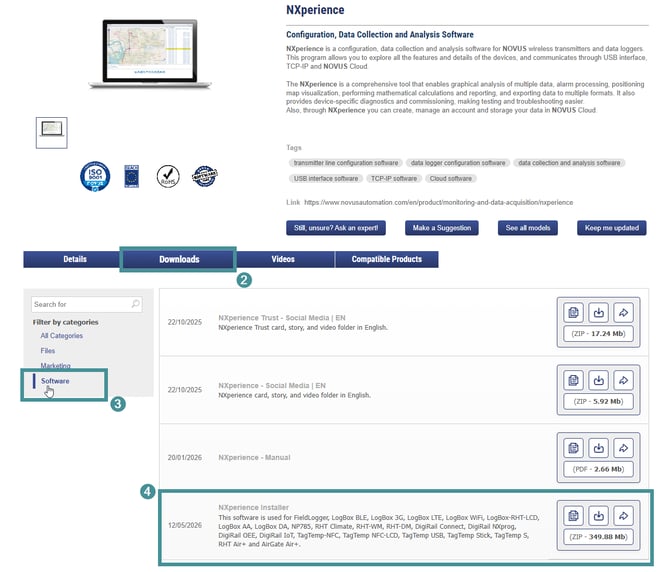
Download the Latest software for NXperience version older than 2.4.0.01.
1. If your version is older, download and install the latest version from NOVUS.
2. Go to Downloads.
3. Click on "Software".
4. Download NXperience Installer
Install the Required Component
1. Run the downloaded installation file.
2. Select "NXperience".
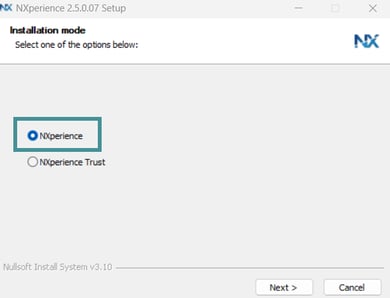
3. Click "Next".
4. Click "Next" again.
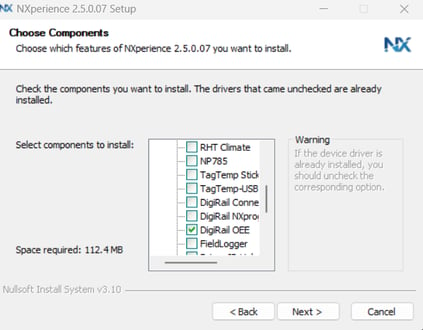
5. On the Choose Components screen, select "DigIRail OEE".
6. Complete the installation.
7. The latest software version is now installed. You can proceed with downloading the firmware.
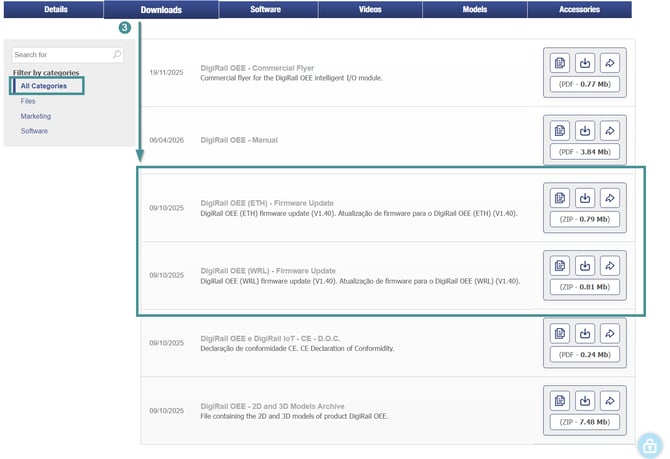
4. Select the firmware package:
-
- ETH for Ethernet-connected devices.
- WRL for wireless-connected devices.
Update the Firmware for all versions
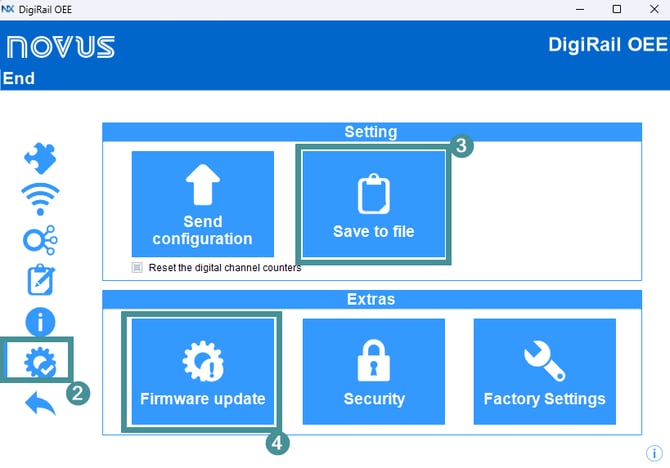
1. Open "Nxperience DigiRail OEE ".
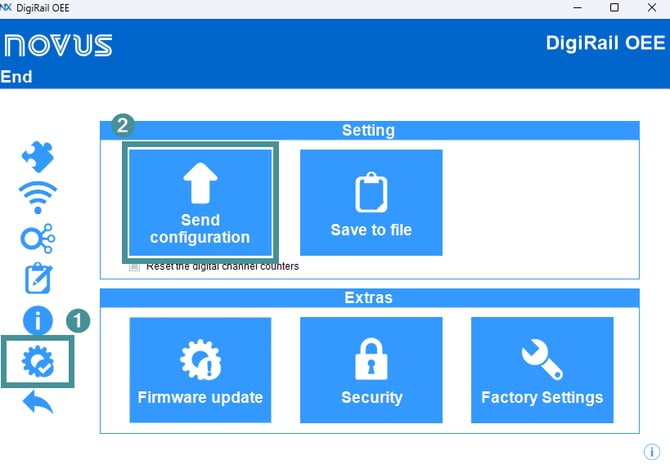
2. Go to "Settings"
3. Click on Save to file. Save first the current device setting to your laptop in case of any issues occuring during the firmware update and we need to get back the settings.
4. Click on "Firmware update"
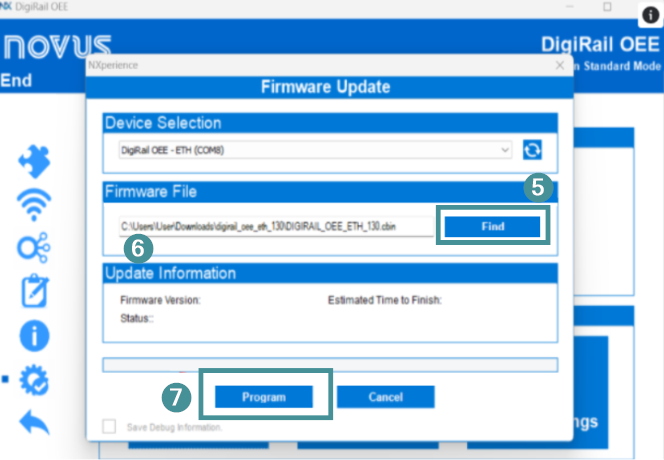
5. Click "Find" and browse to the downloaded firmware file.
6. Select the firmware file. (You might need to extract file from the folder before, by right click extract all)
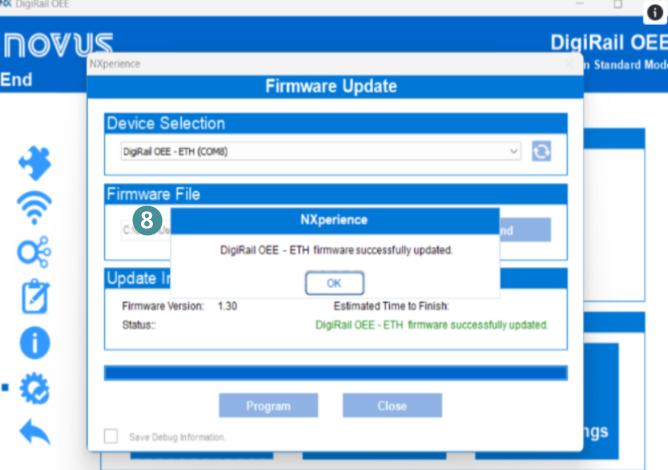
7. Click "Program" to start the update.
Tip: Keep the device connected and powered during the entire firmware update process.
8. After the installation is complete, a confirmation message will appear. Click "OK" to continue.
Update the Device Configuration
After the firmware update is complete:
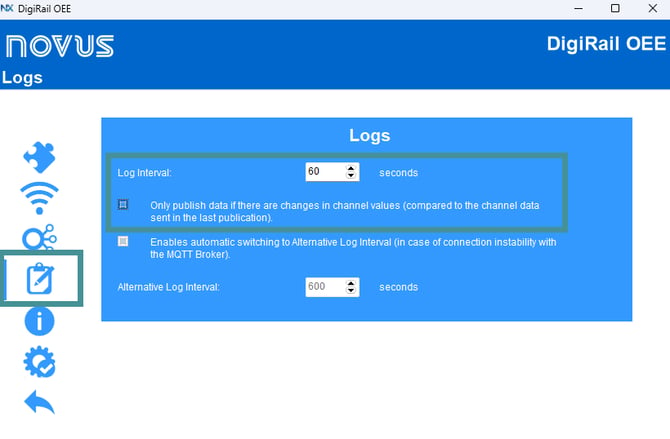
- If you can go into device configuration again there will be a new option on the below page. Uncheck below Log interval with "Only publish data if there are changes..."
Check or Configure Digital Inputs
Verify that the digital inputs are configured as follows:
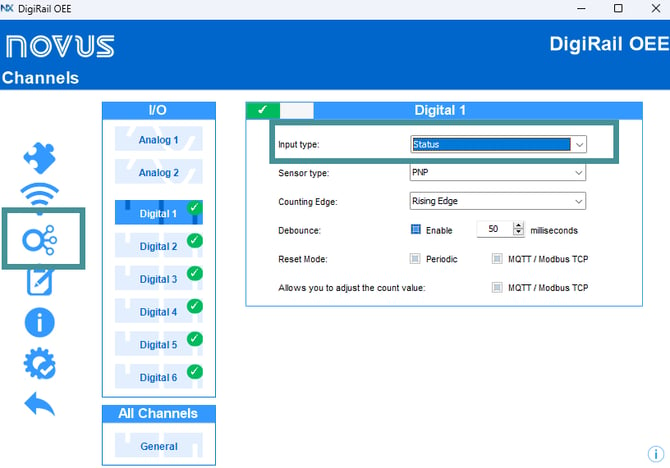
- Make sure each digital input used for machine status is set to Status. (Inputs previously configured as Event must be changed to Status.)
- Leave Counter inputs unchanged. counts should remain as counts.
If you changed any settings, send the configuration to the device. If everything was already correct, no changes need to be sent.
Send the Configuration to the Device
- Review the updated configuration.
- Send the new configuration to the DigiRail device.
- Confirm that the configuration is successfully saved.