
Remove Downtimes in Bulk through Manager:
Go to Manager, Plant config, Work Centre and Search for the specific Work Centre, then open it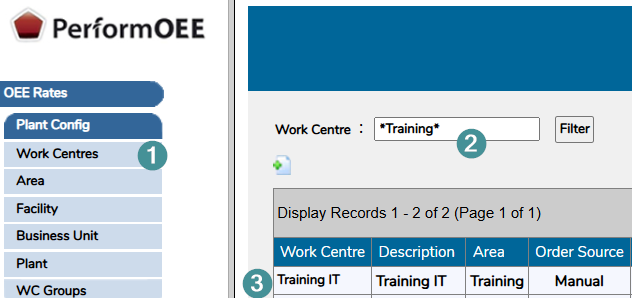
Click on "Assign Downtime"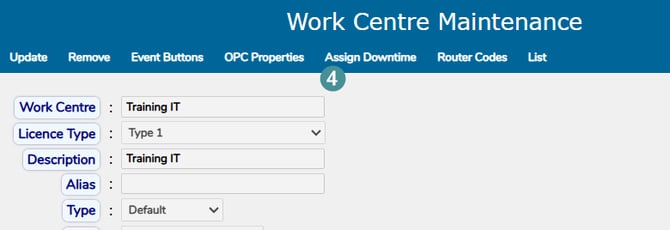
Click on "Update" 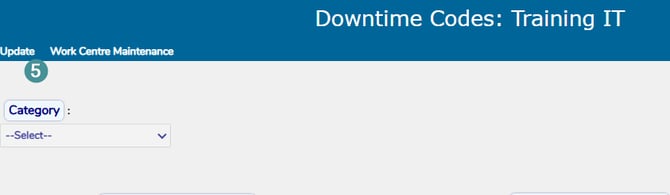
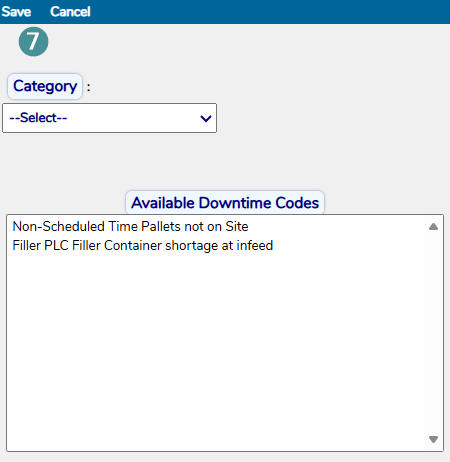
Then select one or more Downtimes by first marking a Downtime, then holding SHIFT or CTRL on the keyboard while selecting additional Downtimes. Use SHIFT to select a consecutive range of Downtimes. Use CTRL to select multiple non-consecutive Downtimes (Downtimes that are not listed directly after one another). The move them with the arrow menu to "Available Downtime Codes" and Save.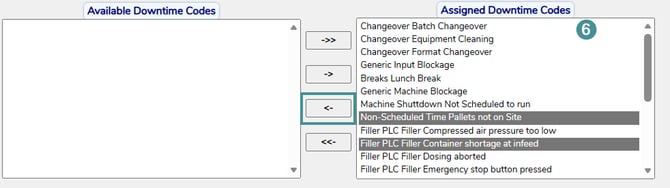
NOTES:
-
The Downtimes will also be remove the downtime from the downloadable downtimes file, as well as from the dropdown list and operator selection. Historical data will not be affected.
-
Category in this case is only used if you want to add back a Downtime.