When should I split downtime?
-
When one downtime period includes several different issues.
-
To improve data quality and reporting accuracy.
You can split and reassign downtime at any time, even after an order is closed.
For best accuracy, update downtime as it happens.
Steps to split downtime
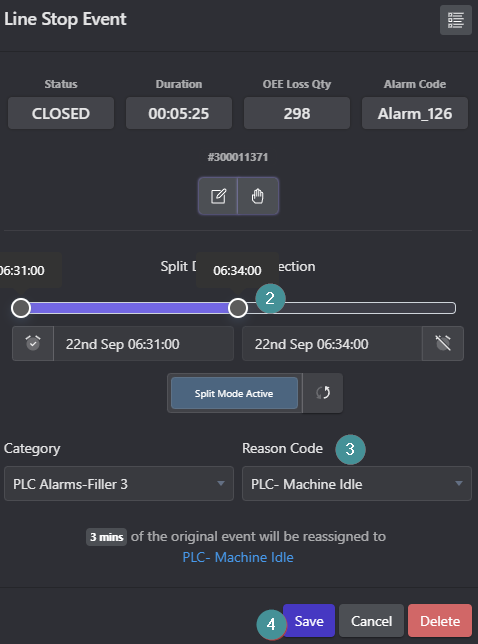
1. Open a Work Centre. Click on the section of the diagram that shows when the machine was stopped.
- or open the Downtime Task List.
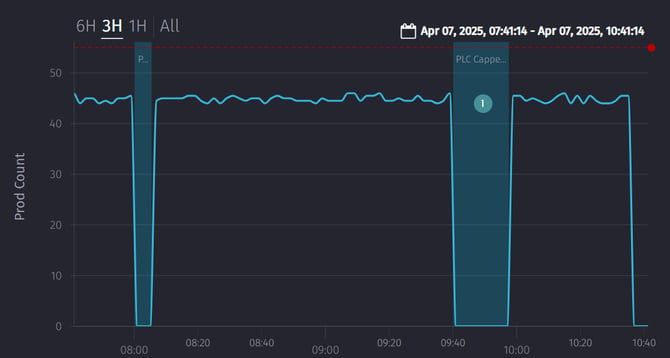
2. Drag the bar to adjust and divide the time period.
3. Select a new Reason Code.
4. Click "Save"