
- Activate the Override Function
- Update the Product Count
- Disable the Override Function
Automatic downtime cannot be removed manually. Maintmaster Support must be contacted to remove these downtimes.
Activate the Override Function
1. Open System settings → Manager
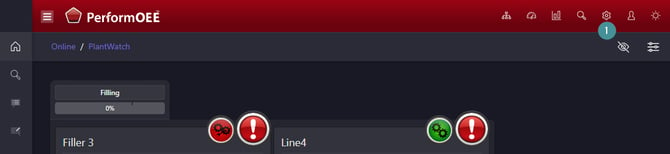
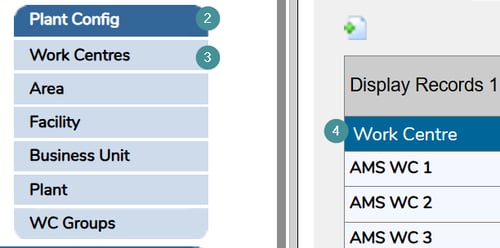
2. Go to "Plant Config"
3. Click on "Work Centres"
4. Select the Work Centre you want to modify
5. Choose OPC Properties
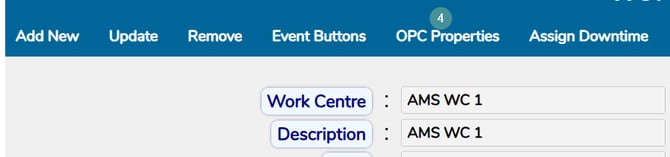
6. Click "Update"

7. Set "Allow Override of Count" to "Yes"
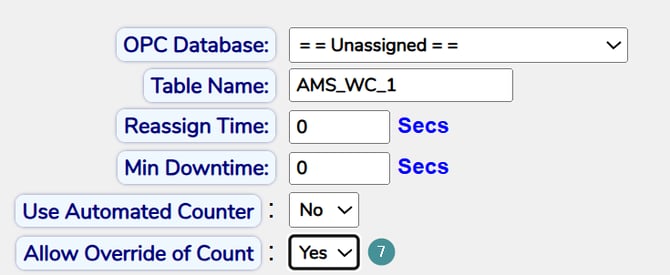
8. Click Save
Update the Product Count
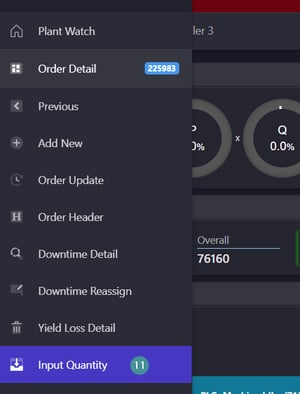
9. Go to Plant Watch
10. Select the Work Centre where you need to correct the count
11. Navigate to "Input Quantity" in the menu
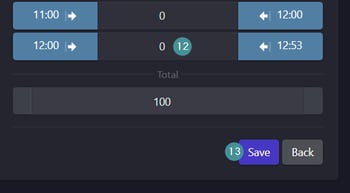
12. Enter the correct product count
13. Click Save
Disable the Override Function
14. Return to System Settings
15. Change "Allow Override of Count" back to "No"
We strongly recommend enabling this function only when necessary to prevent unintended data modifications.