
- Get the product import template
- Fill in the template
-
Upload the file
-
Common errors
Before you start
-
Each column in the import file represents a field in the database.
-
The template must be used as provided.
-
Special characters are not allowed in certain fields.
-
You must have administrator access.
- When adding a new product, you must also add an OEE rate for the product.
- Imported files can be reused to update existing products by uploading them again.
Step 1: Get the product import template
Option 1: Download from the system
1.Open "Manager".
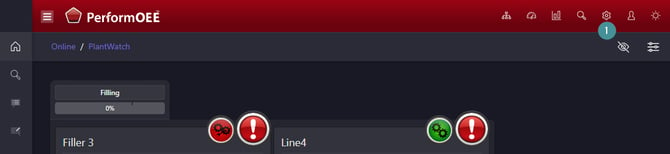
2. Go to "Configuration I/O".
3. Click "Download".
4. Select "Products".
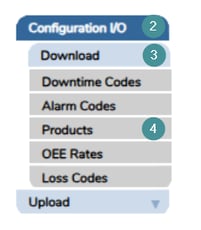
5. Click "Download".
Option 2: Contact support
Contact support and request the product import template.
Step 2: Fill in the template
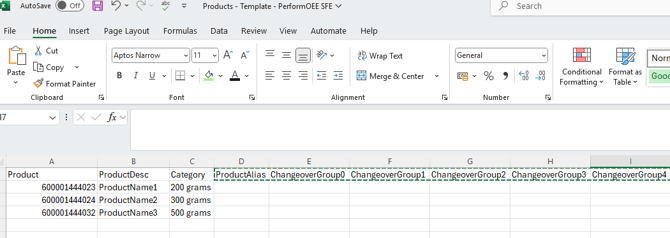
Open the exported file and enter the required information:
-
Column A – Product
-
Product name (must be unique)
-
-
Column B – ProductDesc
-
Product description
-
-
Column C – Category
-
Product category
-
All other columns must remain in the file but can be left blank.
Step 3: Save the file
Excel format (from version 2026.01)
-
Go to File → Save As.
-
Select Excel Workbook (*.xlsx).

Step 4: Upload the file
1. Open "Manager".
2. Go to "Configuration I/O".
3. Select "Upload".
4. Choose "Products".
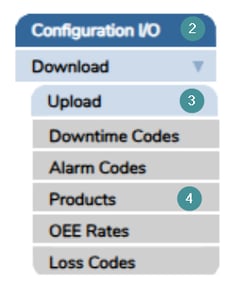
5. Click "Choose File" and select your file.
6. Click "Upload" to complete the import.
Common errors and checks
If an error occurs, verify the following:
-
Product name, description, or category does not contain special characters:
" , ' : ; % @ ~ * # -
The CSV file uses a comma ( , ) as the separator.
-
The product name is no longer than 50 characters.