Before you start
-
Your company may track production by order number or batch number.
If you are unsure which one to use, contact your supervisor or manager. -
Orders can be updated at any time, but if an order is active, you cannot change its start time or shift.
Order behaviour in the system
-
Adding a new order automatically closes any open order.
-
Orders remain open until they are manually closed by a user.
-
If an order changes (manual edit, automation, or order split), the previous order closes automatically.
-
If an order is left open on a non-working day (for example, a weekend) and the entire shift only shows Machine not running with no production, the empty order is deleted automatically.
-
Planned quantity is optional and only sets a production target.
-
Useful for large orders or production spread across multiple shifts or days.
-
-
If you create a new order with the same order number and product, the system automatically includes what has already been produced.
Steps to add a new order
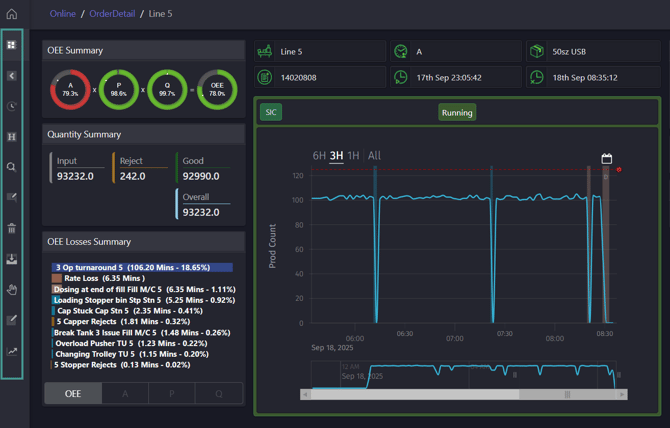
1. Open the Work Centre details view and the left-side menu.
2. Click "Add New."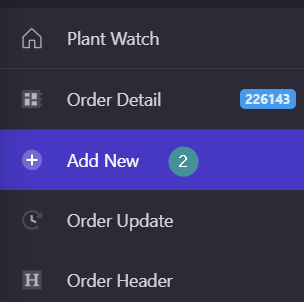
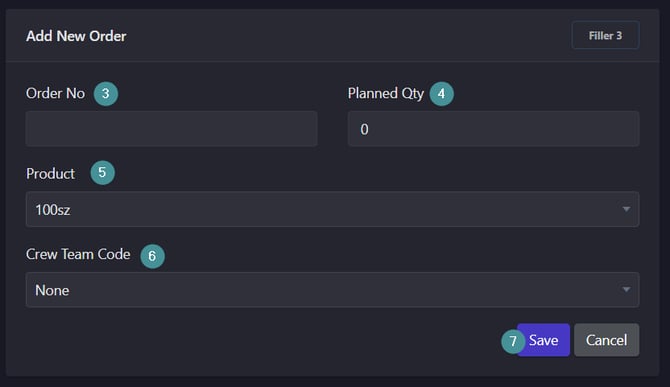
3. Enter the Order number.
4. (Optional) Enter the planned production quantity.
5. Select the product.
6. (Optional) Select a Crew Team code.
7. Click Save.