
Steps to add a quick downtime button
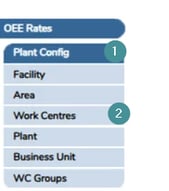
1. Open to System settings → Manager → Plant config
2. Open Work Centres.
3.Select the Work Centre you want to configure.
4. Open OPC Properties

5. Open Alarm Codes.

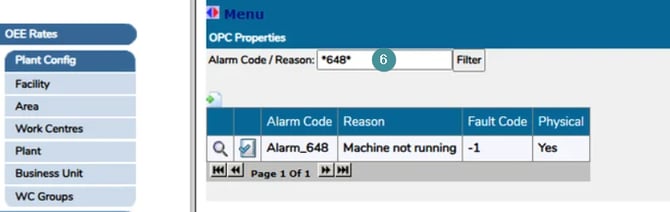
6. Search for the alarm you want to add as a quick button.
Example: Alarm_648 (Idle / Machine not running).
7. Open "Root Causes".

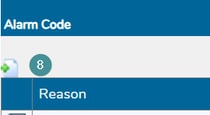
8. Click "Add New Button"
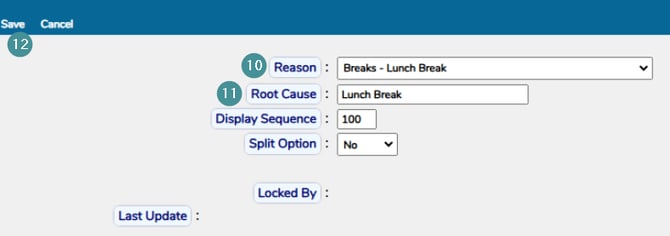
9. Select the Reason Code you want to assign (e.g. Lunch Break).
10. In "Root Cause (Text)", enter the label you want to appear on the button.
11. Save your changes.
Result
-
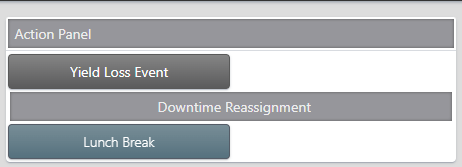
The quick button is displayed in the Work Centre Order Detail screen when the selected alarm code is active.
-
Operators can click the button to instantly reassign the downtime from example Machine not running to the selected downtime reason, in this case Lunch break.