
Create a new action or note
- Open the production run or work centre the action or note belongs to.
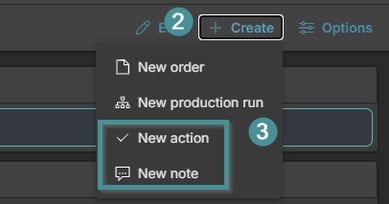
- Click Create in the top right corner.
- Choose New action or New note.
-
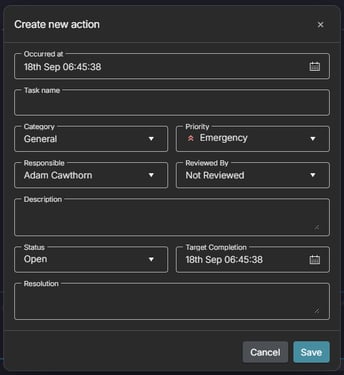
New Action:
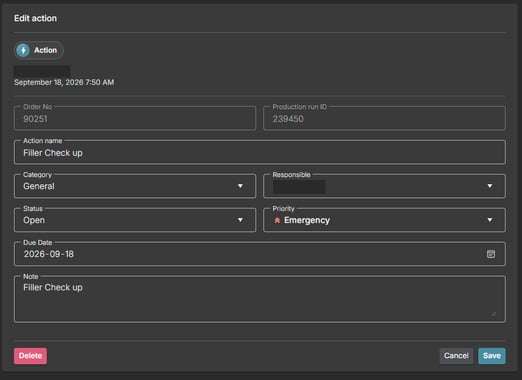
Fill in Occurred at, Task name, category, priority, responsible, reviewed by (Who will review or approve outcome), description, status, target completion and resolution (if available), then save.
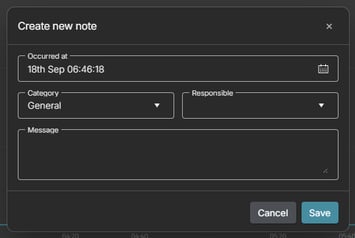
- New note:
Fill in Occurred at, category, responsible and message
Open the log
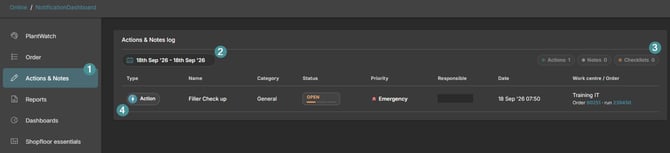
- Click Actions & Notes in the main menu.
- Set the date range to the period you want to see.
- The counters in the top right show how many Actions, Notes etc were found in the period.
- Select a row in the log to view and edit its details in the panel on the right.
Good to know
- Actions have a status and a responsible person, so they can be followed up. Notes are for information only.
- Actions and notes created on a run are also visible on the Actions & Notes tab of that run.
- Notes show up in the Notes Report on the dashboards, so they are a good way to hand over information between shifts.