When to use a Note
Use Notes to add free-text information linked to a downtime, for example:
-
To inform an Administrator, Supervisor, or Manager that a downtime reason code is missing.
-
To describe how the line is performing.
-
To add any additional context that helps explain the stop.
Steps to add a Note
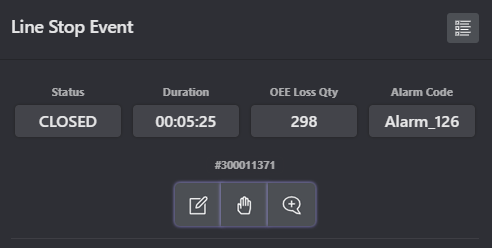
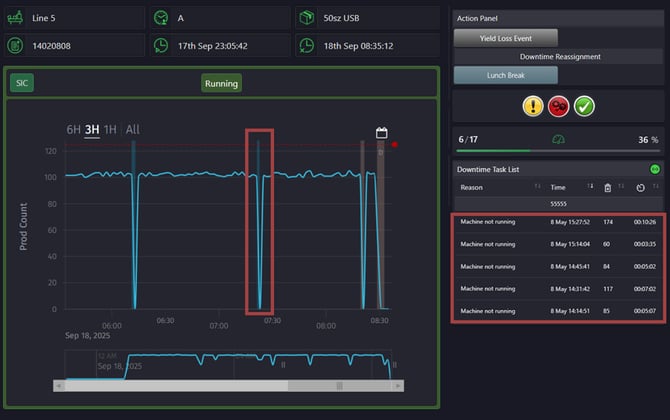
1. Open the stop event by clicking on the downtime in the graph or select an unassigned downtime from the Downtime Task List.
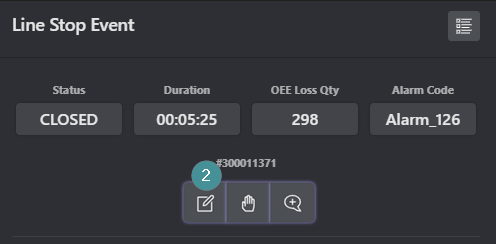
2.Click the "Note icon".
3. Choose a category.
4. (Optional) Select a user if you want to notify someone.
5. Write your message.
6. Click "Append".
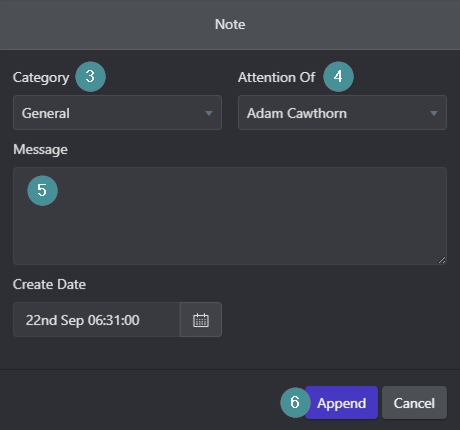
7. Click "Save".
When to use an Action
Use Actions when a task needs to be completed, such as:
-
Requesting Maintenance to fix an issue.
-
Alerting a Manager that follow-up work is required.
Steps to add an Action
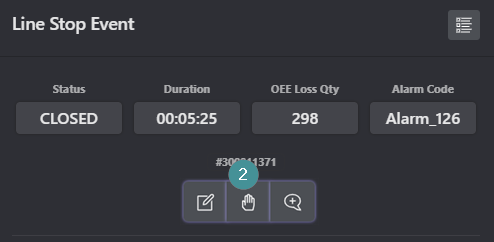
1. Open the stop event by clicking on the downtime in the graph or select an unassigned downtime from the Downtime Task List.
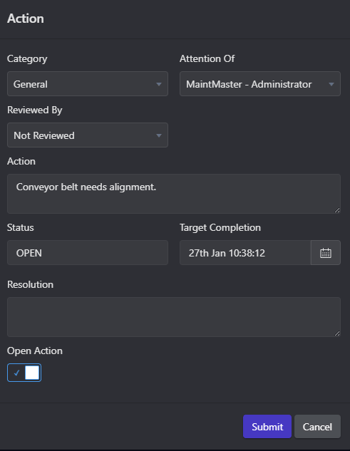
2. Click the "Action icon".
3. Select the appropriate Action category.
4. Select a user to assign the action to.
5. Enter who will review/approve the outcome.
6. Describe the action to be performed.
7. Set an "Action status" (e.g. Open, In progress, Red/Emergency, Green).
8. Enter a resolution description (if available).
9. Click "Append".
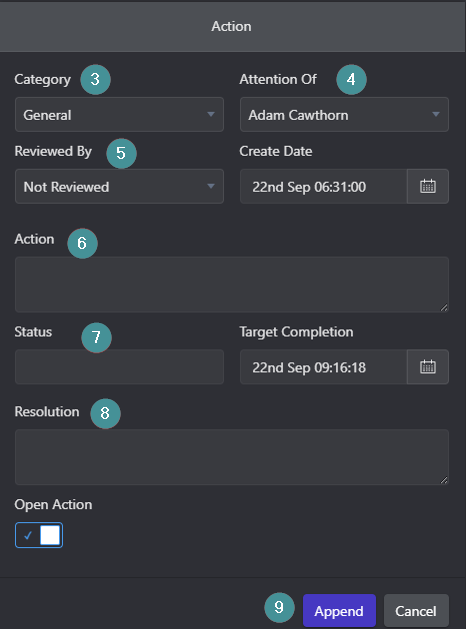
10. Click "Save".
When the action is completed:
-
Open the action.
-
Update the Status and Resolution.
-
Click Save again.
View notes and actions
Notes and actions added to downtimes or orders can be viewed directly in the Order Detail screen and centrally in Plant Watch – Notification Dashboard.
View notes
1. Order Detail screen
-
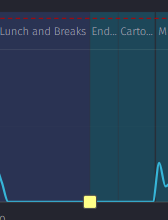
After a note is saved, it appears as a small yellow square icon in the Order Detail screen.
-
When you hover over the icon, it turns red and the note preview is shown.
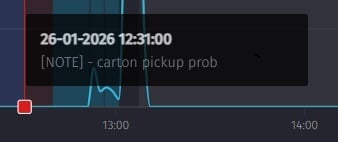
-
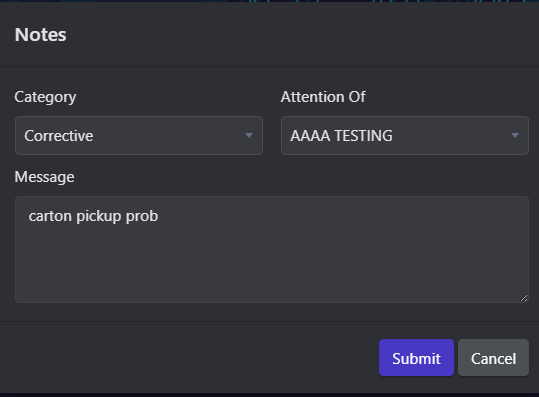
When you click the icon, a window opens where you can view the full note and related details.
View actions
1. Order Detail screen
-
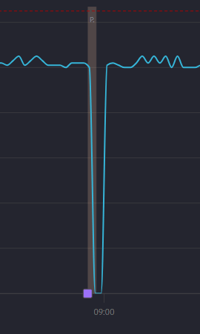
After an action is appended, it appears as a small purple square icon in the Order Detail screen.
-
When you hover over the icon, it turns red and shows a preview of the action.
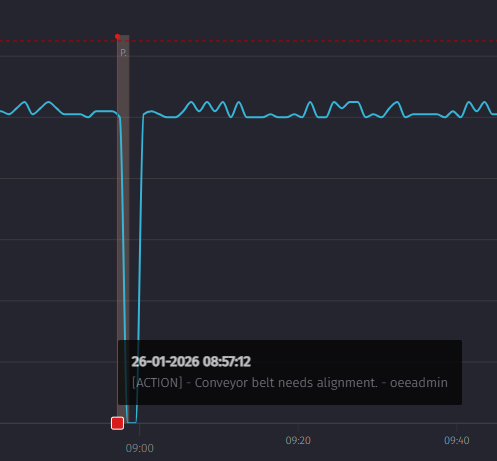
-
When you click the icon, a window opens with detailed information about the action.
View notes and actions in Plant Watch
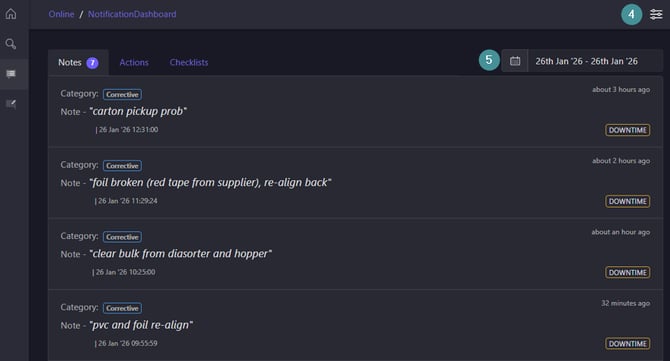
Plant Watch – Notification Dashboard
-
Open Plant Watch.
-
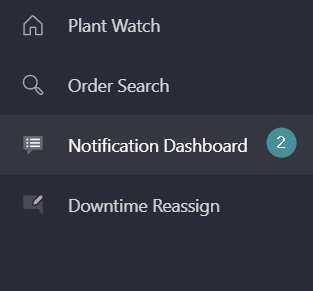
In the left-hand menu, click Notification Dashboard.
-
Here you can view a collection of all notes and actions created by users. Use the different tabs to switch between Notes and Actions.
-
Use the hierarchy selection to filter which Work Centres you want to include.
-
Click the date selector to define a custom date range.