
Reassign one or more downtimes
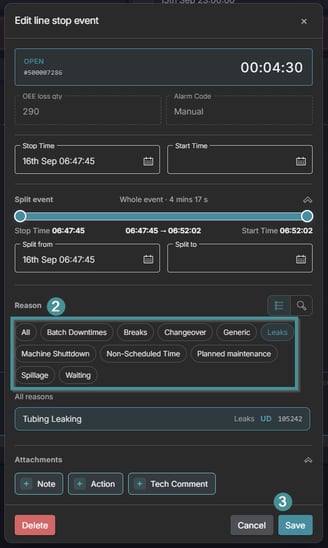
- Open the production run and click on the Downtime on the Graph or Downtime reassign tab. For the Graph continue Selecting the reason and save.
- Set the Search Range to the dates you want to work with, and use Assignment Status to show all, assigned, unassigned or unassigned\reassigned downtimes.
- Tick the checkbox on the downtimes you want to update in the list.
- Select the Reason Category and then the Reason Code. Add a comment in Other Info if needed.
- Click Reassign to save.
Good to know
- You can reassign several downtimes at once. Tick all the downtimes that share the same reason before you click Reassign.
- The Original Reason Code column always keeps the reason the downtime had from the start, so you can see what was changed.
- Automatic downtime cannot be removed manually. Contact Maintmaster Support if a downtime needs to be removed.