Create a dashboard
1. Log in to the MyDevices portal.
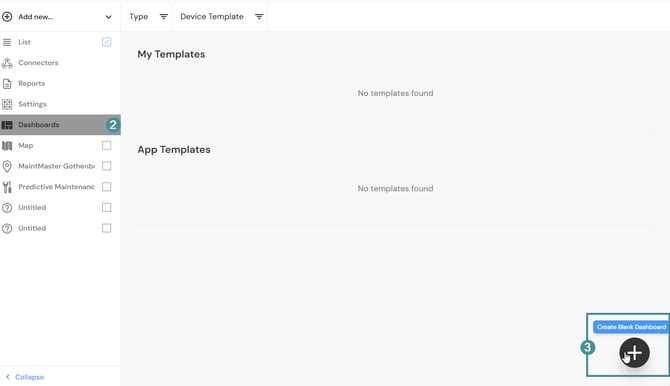
2. In the menu on the left, select "Dashboard".
3. Click the + icon labeled "Create Blank Dashboar"
Add sensors to the dashboard
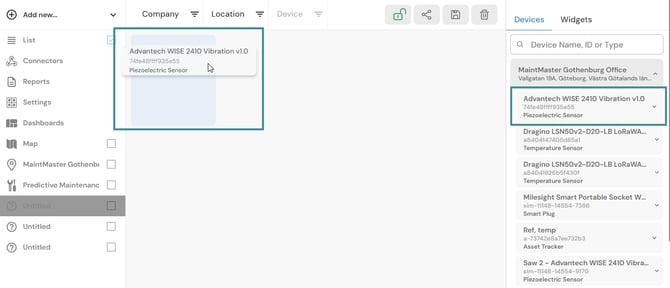
1. Locate the sensor you want to add
2. Click and hold the sensor.
3. Drag it to the desired location on the dashboard.
4. Release the sensor to place it on the dashboard.
Resize a sensor widget
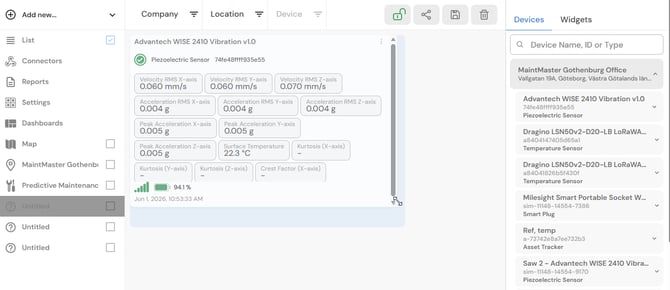
1. Select the sensor widget on the dashboard.
2. Click and drag the corner of the widget.
3. Adjust it to the desired size.
Remove a sensor from the dashboard
1. Click the three-dot menu on the sensor widget.
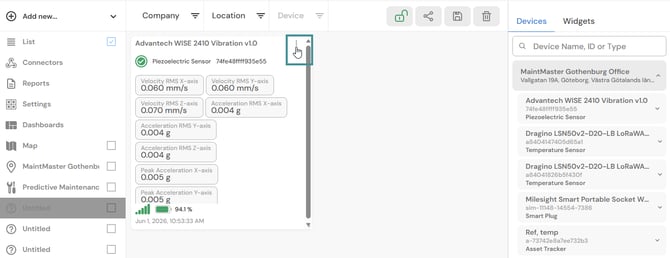
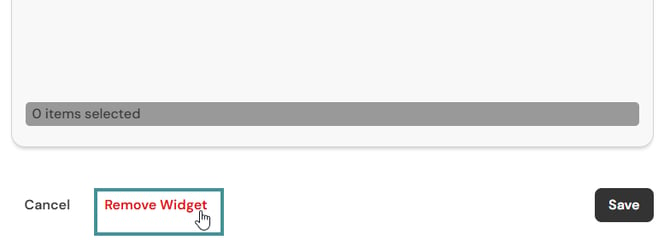
2. In the window that opens, scroll to the bottom of the page and select "Remove Device".
Add other dashboard elements
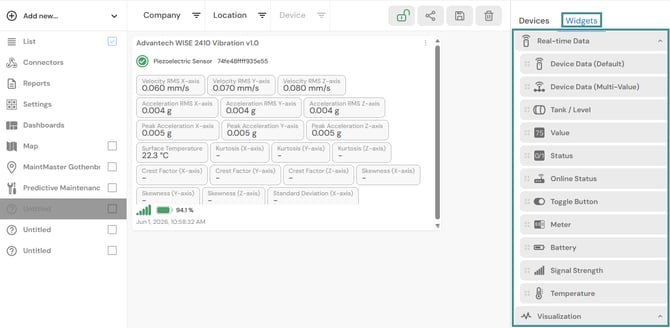
In addition to sensors, you can add other elements through the Widgets tab, such as:
- Notes
- Images
- Statistics
- Videos
- Other available widgets
Widgets are added, resized, moved, and removed in the same way as sensor widgets.
Many widgets include additional configuration options. Explore the settings for each widget to customize its appearance and functionality.