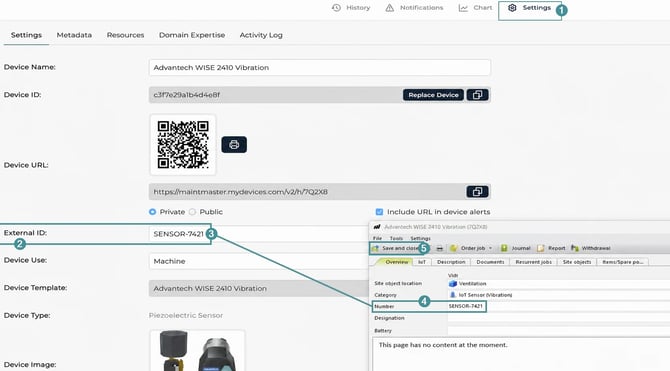
1. Add the sensor in myDevices portal
1. Go to the myDevices management portal with your credentials:
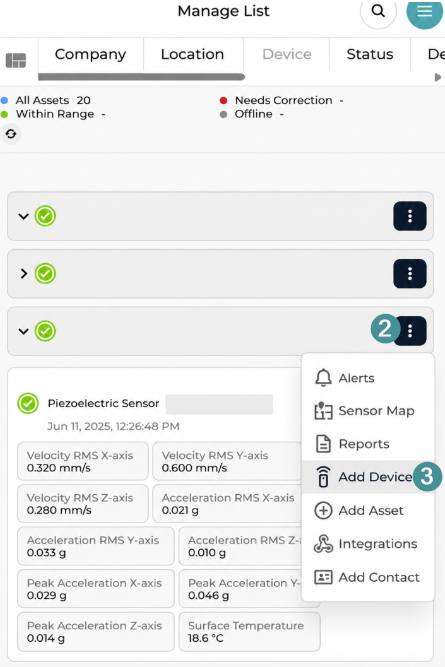
2. Click on the three dots
3. Select "Add Device" in the myDevices portal.
4. Scan the QR code on the physical sensor device.
5. Complete any required registration details in the MyDevices-portal.
2. Create the IoT Sensor in Maintmaster
Option 1: Create a New Sensor Object
1. Open Maintmaster.
2. Select "New".
3. Choose "Site object".
4. Click on the appropriate Site object category, for example, IoT Sensor.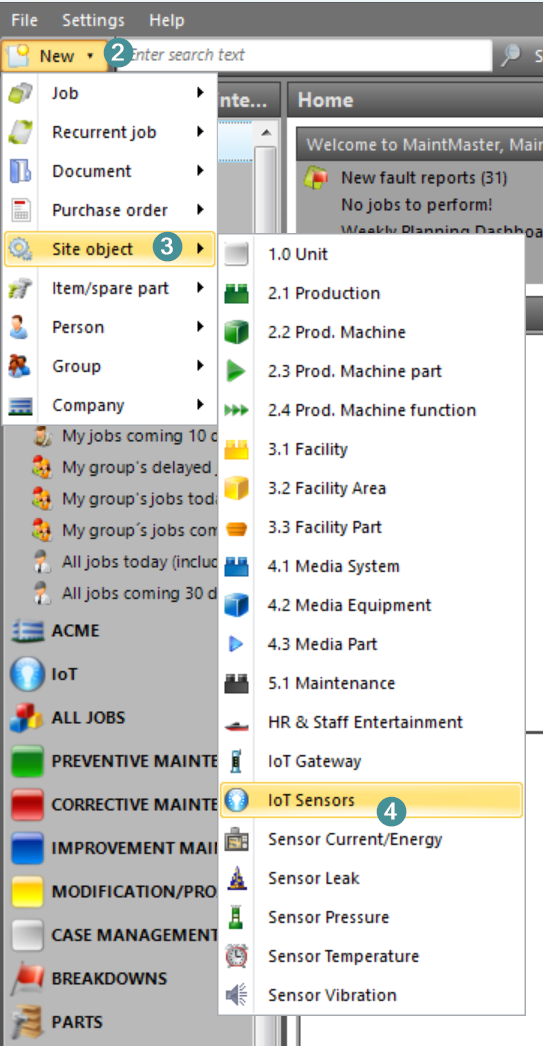
5. Create the new sensor object and enter the required information.
6. Enter the sensor’s External ID from myDevices in the "Number" property.
7. Save and close.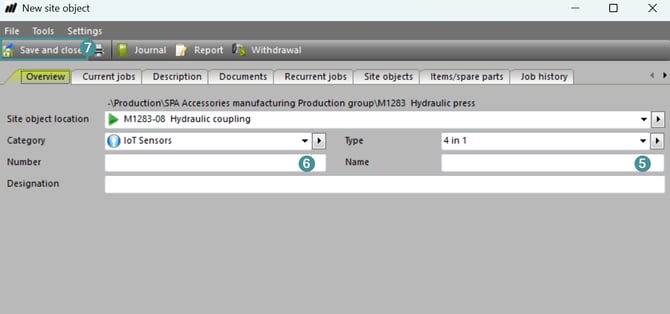
Option 2: Copy an Existing Sensor
If you already have a similar sensor configured:
1. Locate and open an existing IoT sensor object in Maintmaster.
2. Go to "File".
3. Select "Copy Record".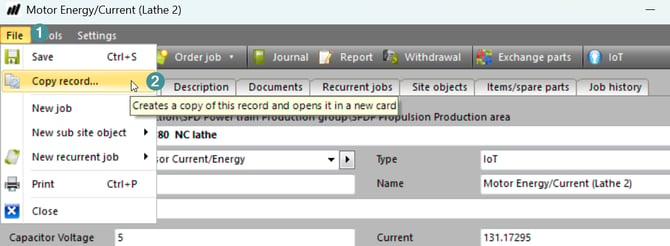
5. Enter the relevant sensor information for the new sensor.
6. Enter the sensor’s External ID from myDevices in the "Number" property.
7. Save and close.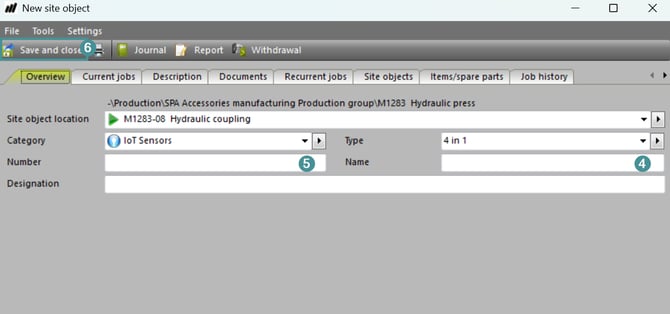
How to find the External ID
1. Open the sensor in the myDevices portal.2. Locate the External ID field.
3. Copy the External ID.
4. In Maintmaster, enter this value in the "Number" property of the sensor object.
5. Save the changes.
The external ID in the myDevices portal must exactly match the number used in Maintmaster. If the values do not match, the sensor may not connect correctly.