
1. Overview of the Assets Tree page
2. Navigate the asset tree
3. Search using the filter
4. Create assets within the tree
5. Reorder assets in the tree
6. Work with the asset card
7. Asset tree on mobile devices
8. Troubleshooting
When to use this
Use this when you need to:
- Navigate asset hierarchies
- Locate specific assets quickly
- Create new assets within a structure
- View and manage asset details alongside the tree
Overview of the Assets Tree page
In the Quick menu, you will find the Asset tree button.
When you click the Asset tree button, you are taken to your Asset tree.

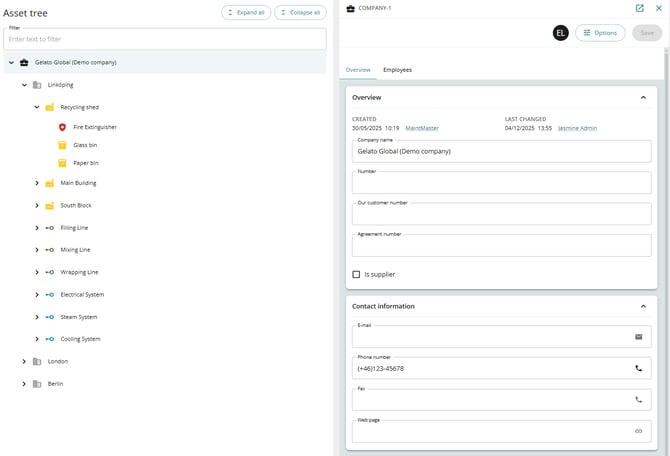
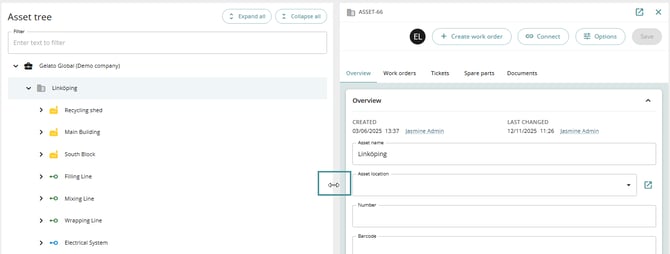
The asset tree provides a hierarchical view of all assets in the system.
- The left side displays the tree structure
- The right side shows the selected asset card
At the top of the tree, you will see the system company (root level) in this example Gelato Global.
Navigate the asset tree
Expand or collapse the tree
- Use the expand button to open all nodes
- Use the collapse button to close all nodes

Search using the filter
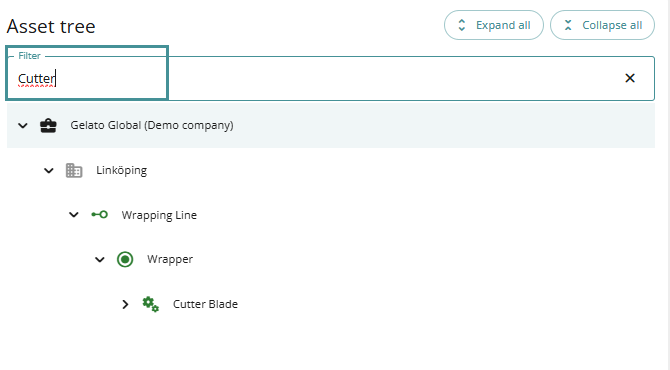
- Enter a keyword in the filter field
- The tree updates to show matching assets
- Select the desired asset from the results
- Clear the filter to return to the full tree
After clearing the filter, your selected asset remains active.
Create assets within the tree
You can create a new asset directly from the tree:
Steps
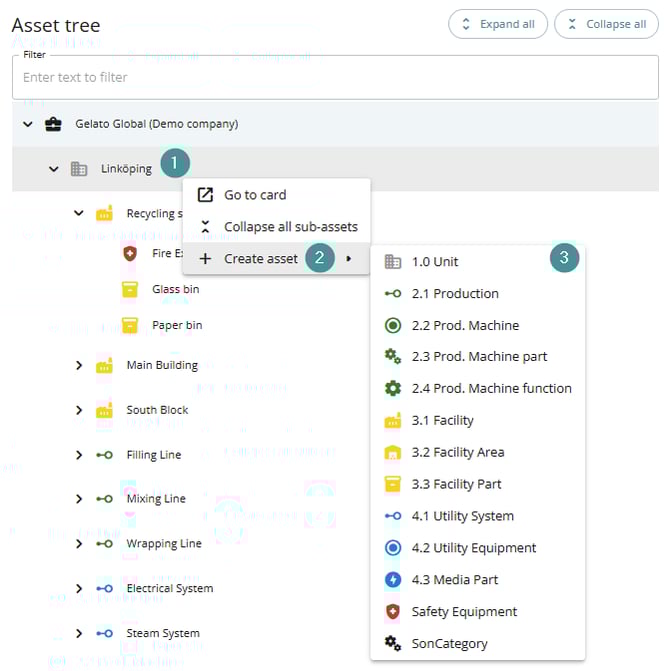
- Right-click on a parent asset
- Select Create asset
- Add the required details
- Save the asset
The new asset will be placed under the selected parent.
Reorder assets in the tree
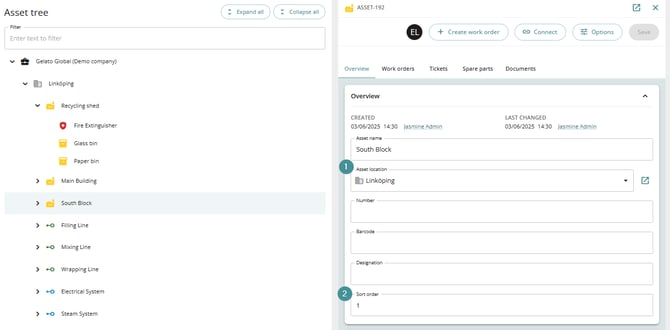
Reordering is not done directly in the tree.
1. To change position in the hierarchy:-
- Update the asset’s location on the asset card
2. To change display order:
-
- Adjust the sort order field
Drag-and-drop reordering is currently not supported.
Work with the asset card (right panel)
- The selected asset appears on the right side
- All functionality is the same as when opening the asset from a search or selection
Resize the view
- Drag the divider between the tree and the asset card
- The layout adjusts dynamically
Asset tree on mobile devices
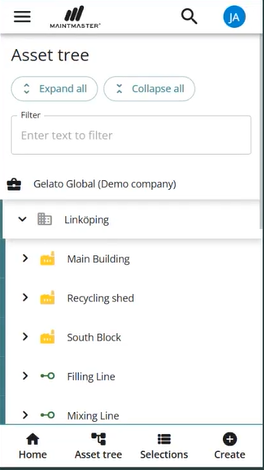
- Displays as a hierarchical list with indentation
- Does not support split view
Behavior on mobile
- Selecting an asset opens its card in full screen
- The tree and card cannot be viewed simultaneously
Troubleshooting
Cannot find an asset
- Use the filter function to search by name
Unable to reorder assets
- Update the asset location or sort order instead
Right panel not visible
- Ensure the panel is not minimized or resized too small