
When to use this
Use the calendar view when you:
-
Need a weekly overview of planned work.
-
Want to assign or reschedule work orders visually.
-
Are managing workload across multiple users.
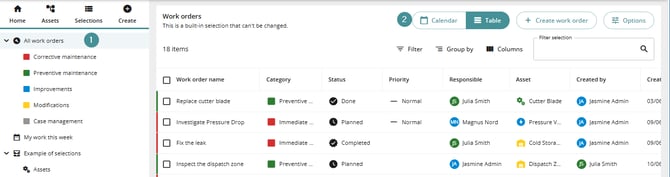
Switch to calendar view
Steps
-
Open a work order selection.
-
Click Calendar (next to the Table view).
You can switch back to the table view at any time.
Navigate the calendar
At the top of the view, you can:
1. Click Today to return to the current week.
2. Use arrows to move between weeks.
3. See the current week number.
4. Apply filters to refine visible work orders.
5. Expand or collapse the swim lanes.

Understand the layout
Columns
-
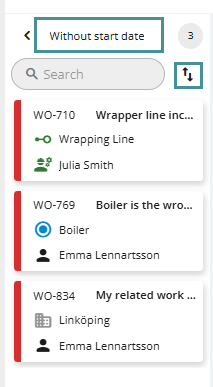
Without start date
-
Shows work orders that are not yet scheduled.
-
Can be sorted (by priority) and filtered.
-
-
Days of the week
-
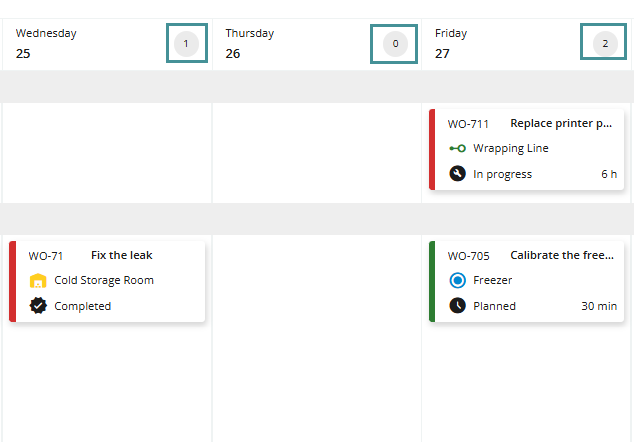
Each column represents a day.
-
Indicators show how many work orders are planned per day.
-
The current day is highlighted.
-
Swim lanes
-
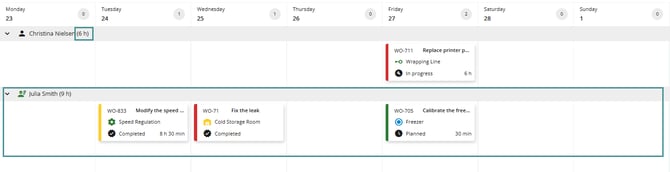
Each row represents a responsible person.
-
Displays total planned hours per person for the week.
Work order tiles
Each tile shows:
1. Category (color indicator)
2. Work order ID
3. Title
4. Asset
5. Status
6. Planned time (if available)
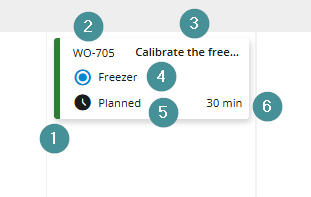
Tile layout cannot currently be customized.
Plan and assign work orders
Drag and drop
You can:
-
Drag work orders from Without start date to a day and responsible person.
-
Move work orders between users or days.
This updates:
-
The responsible person
-
The start date
Remove a start date
You cannot drag a work order back to Without start date.
Instead:
-
Click the work order.
-
Open it in the side panel (split view).
-
Clear the start date.
-
Save the work order.
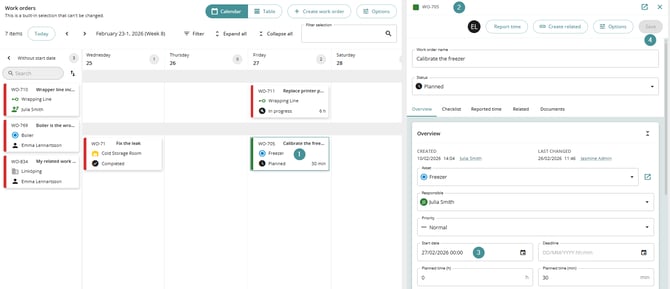
Limitations
The following limitations currently apply:
-
You cannot:
-
Drag work orders to users without an existing swim lane.
-
Drag completed work orders.
-
Save the calendar view as a menu item (table view is default).
-
-
Work orders:
-
Appear only on their start date (do not span multiple days).
-
Troubleshooting
I cannot drag a work order
-
Ensure the work order is not completed.
-
Check that the target user already has a swim lane.
I cannot find a work order in the calendar
-
It may be under Without start date.
-
Check filters and selected week.
Changes are not reflected
-
Refresh the view or verify filters.