
1. Upload document to a work order
2.Upload documents to an asset
3. Manage uploaded documents
4. Limitations
5. Troubleshooting
When to use this
Use this when you need to:
- Attach documentation (manuals, images, reports) to an asset
- Add supporting files to a work order
- Make documents available for others to download
Upload documents to a work order
Steps
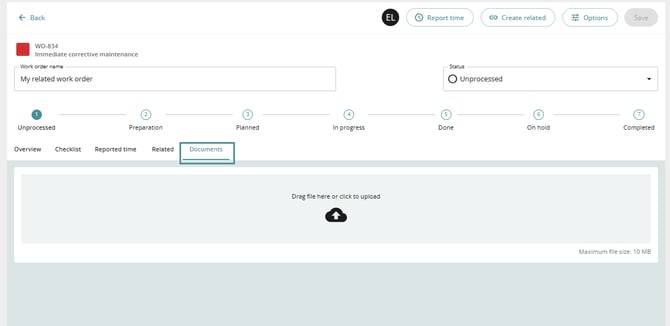
- Open the relevant work order card.
- Navigate to the Documents tab.
- Upload a file by either:
- Clicking to select a file, or
- Dragging and dropping the file into the upload area.
Upload documents to an asset
Steps
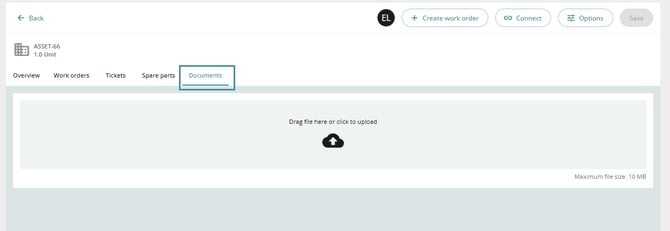
- Open the relevant asset card.
- Go to the Documents tab.
- Upload a file by:
- Clicking to upload, or
- Dragging and dropping the file.
Manage uploaded documents
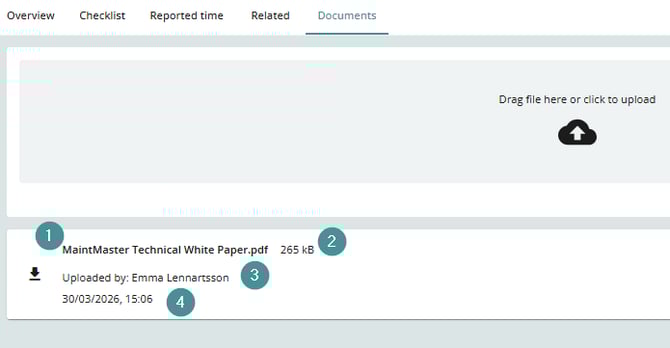
Once a document is uploaded, it will appear in the document list with the following details:
1. File name
2. File size
3. Uploaded by (user)
4. Upload date and time
Available actions
1. Download: Use the download button on the left.2. Open the contect menu on the right side:
-
- Edit display name.
- Enter a new name and save.
3. Delete document
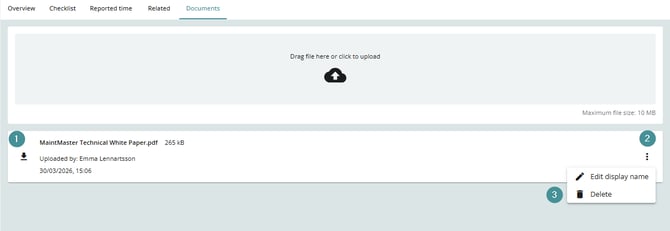
Deleting a document permanently removes it.
Limitations
- Documents cannot be linked from other locations.
- Only direct file uploads are supported.
- Maximum file size: 10 MB.
Troubleshooting
Cannot upload a document
- Ensure the file size does not exceed 10 MB.
- Check your permissions.
Document not visible after upload
- Refresh the page or confirm the record was saved.
Unable to edit or delete document
- Verify that you have sufficient permissions (administrator or editor access).