
When to use this
Use this guide when you want to:
-
Add new priority levels for work orders.
-
Change the order of priorities in the dropdown list.
-
Update the name, icon, or description of an existing priority.
-
Disable priorities that are no longer used.
Manage work order priorities
Work order priorities are configured in System settings.
Steps
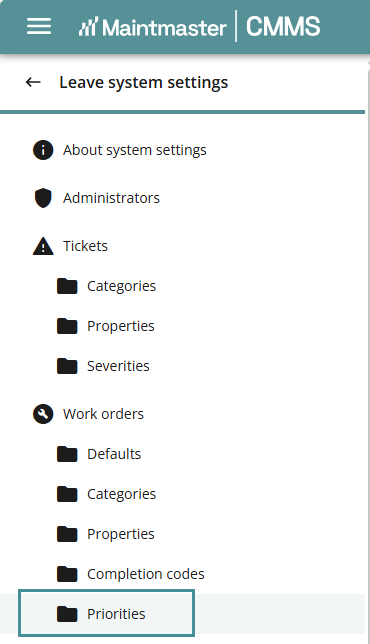
1. Go to System settings.
2. Navigate to Work orders → Priorities.
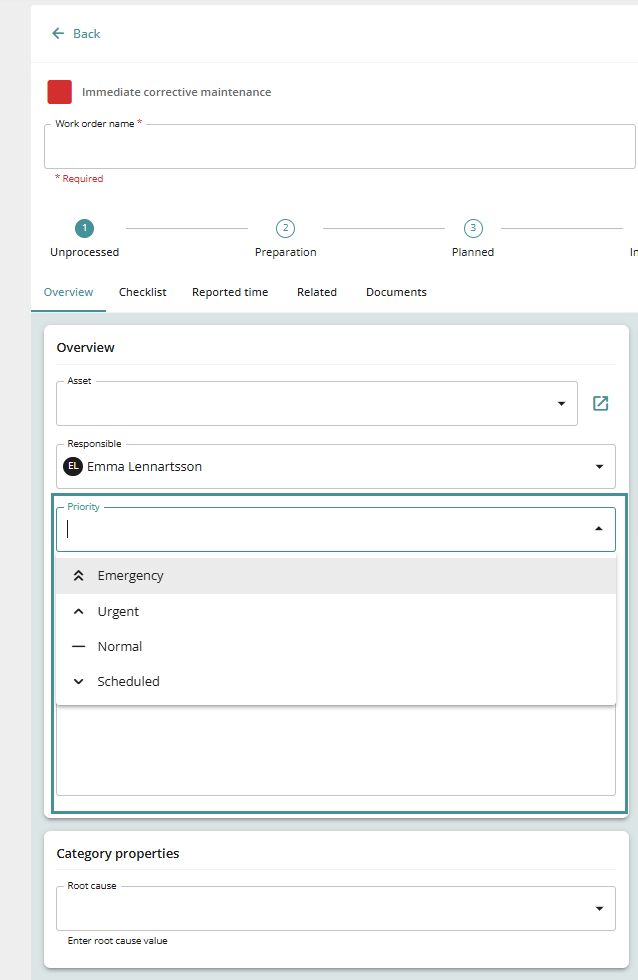
Here you can manage the priorities that appear in the priority dropdown list when working with work orders.
Edit, add, or delete priorities
In this section you can:
-
Add (1) new priorities
-
Edit (2) existing priorities
-
Delete (3) priorities that are no longer needed
-
Reorder (4) priorities to control how they appear in the dropdown list
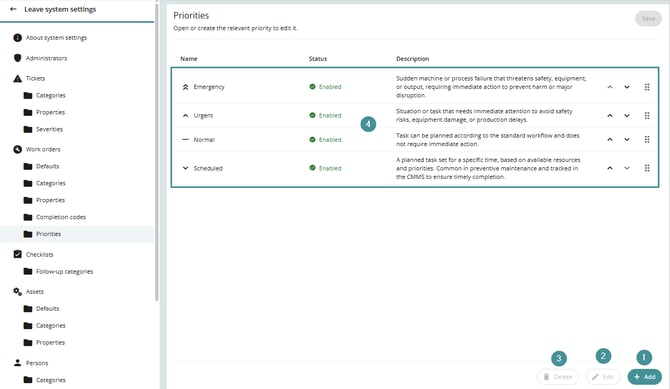
Reordering priorities can help highlight the most commonly used options.
Create a new priority
To create a new work order priority:
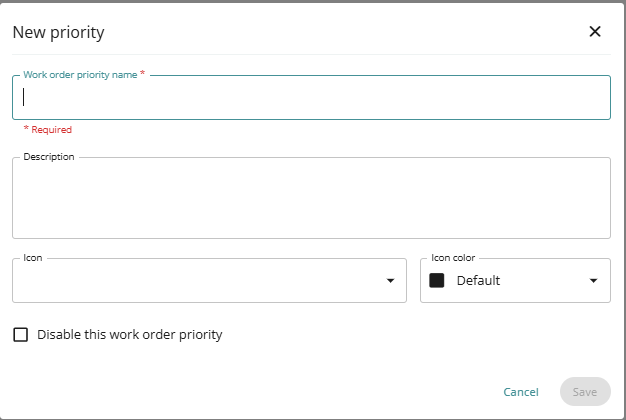
1. Click Add.
2. Enter a Priority name (required).
3. Optionally add:
-
Description
-
Icon
-
Icon color
4. Enable or disable the priority depending on whether it should be available.
5. Click Save.
The new priority will now appear in the priority dropdown on work orders.
Troubleshooting
The priority does not appear on work orders
-
Ensure the priority is enabled.
-
Confirm that the changes were saved.
The priority order is incorrect
-
Drag priorities to reorder them in the list.
-
Save the changes to update the order in the dropdown.