
When to use this
Use this when you:
-
Want a personal overview of your work orders for the current week.
-
Need quick access to your assigned tasks.
-
Want to create a reusable and shareable selection.
Start from the built-in work order selection
Steps
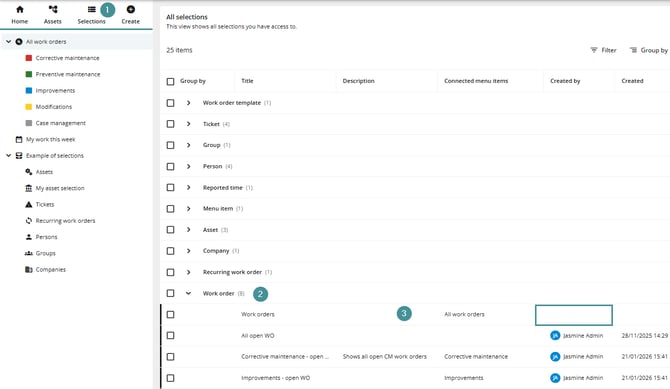
1. Go to All selections.
2. Open the Work orders section.
3. Select the built-in work order selection
(This is the one without a “Created by” value.)
Apply filters
Steps
1. Click Filter.
2. Add filter: Responsible = Current user.
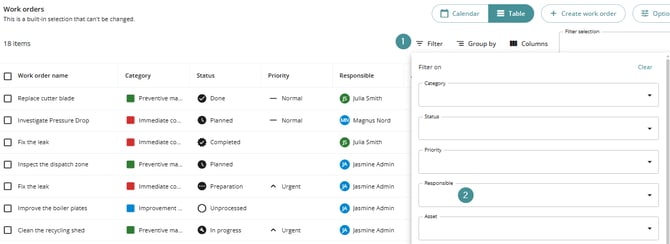
3. Add filter: Start date = Start of this week → End of this week.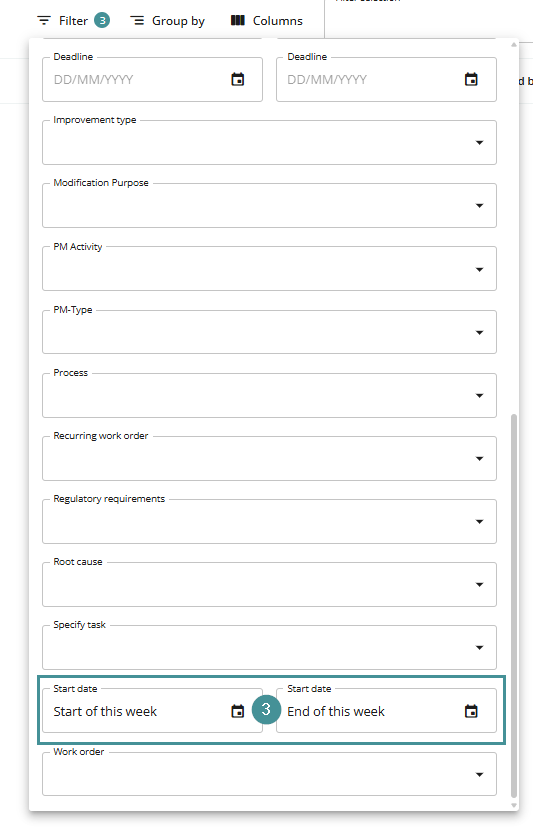
This ensures the selection shows only work orders:
-
Assigned to the logged-in user.
-
Scheduled within the current week.
Customize columns
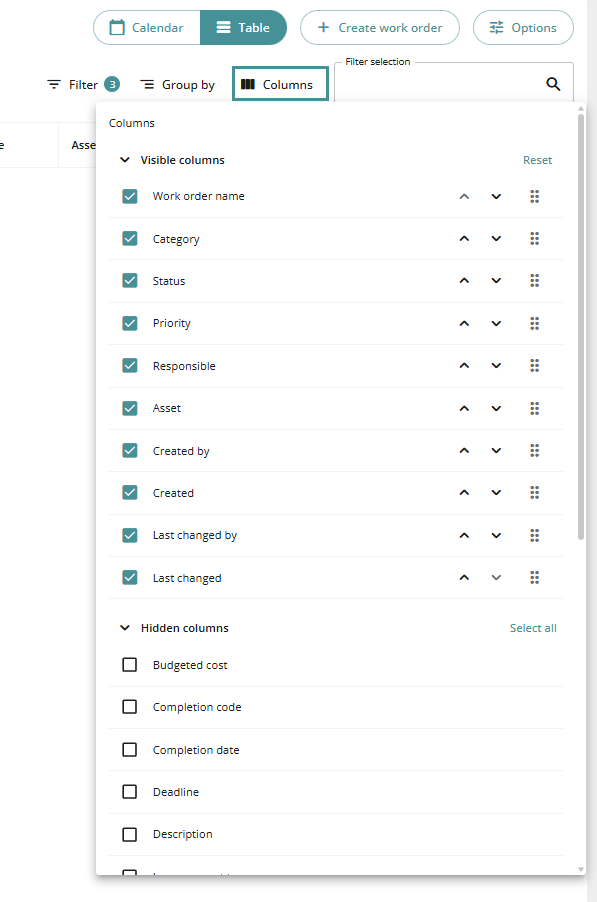
Adjust the visible columns to fit your needs.
Recommended changes
-
Remove:
-
Created by
-
Created
-
Last changed by
-
-
Add:
-
Start date
-
Deadline
-
You can drag and reorder columns as needed.
If no records appear, it may simply mean the current user has no assigned work orders for this week.
Save the selection
Steps
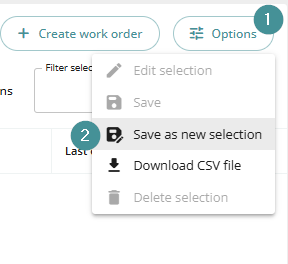
1. Click Options.
2. Select Save as new selection.
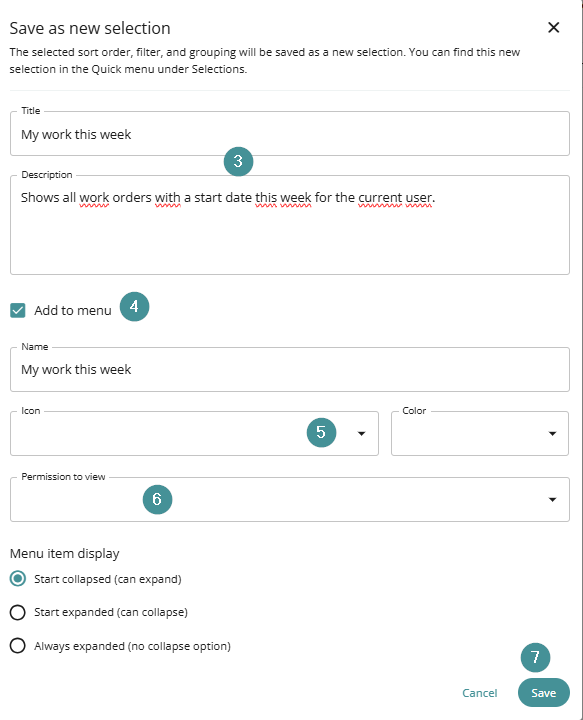
3. Enter:
-
-
Name: My work this week
-
Description: Shows all work orders with a start date this week for the current user
-
4. Enable Add to menu.
5. (Optional) Choose an icon and color.
6. Set visibility (e.g., available for all users).
7. Click Save.
Result
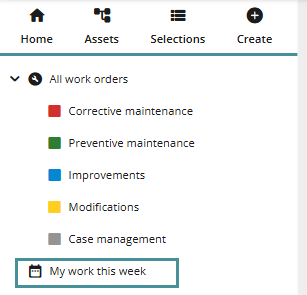
The new selection will:
-
Appear in the menu.
-
Automatically adapt to the current user.
-
Show each user their own work orders for the week.
Troubleshooting
No work orders are shown
-
The user may not have any work orders assigned this week.
-
Check filter settings (especially Responsible and Start date).
Selection is not visible in the menu
-
Ensure Add to menu was selected during setup.
-
Verify user permissions.