
When to use this
Use this when you need to:
- Create a new selection based on an existing one
- Customize how data is displayed (e.g. add columns)
- Manage or organize selections for users
Selections for non-administrators vs administrators
- Non-administrators can view and use selections.
- Administrators have access to an additional Options menu with management features.
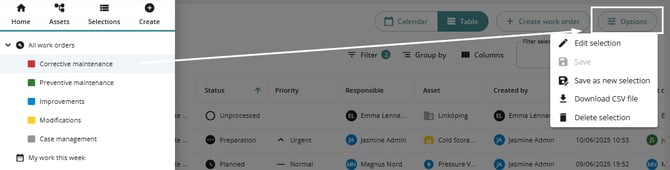
Access selection options (administrators only)
1. Open any selection (e.g. assets or work orders).
2. Click the Options button.
Available actions depend on the type of selection.
Built-in vs custom selections
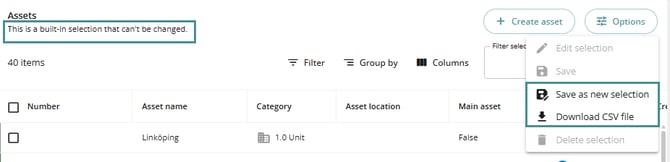
Built-in selections
- Cannot be modified or deleted.
- Available actions:
- Save as new selection
- Download CSV file
Custom selections
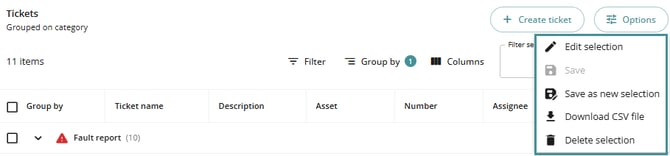
- Fully editable.
- Available actions:
- Save
- Edit selection
- Save as new selection
- Delete selection
Create a new selection from an existing one
Example use case
You want to save a selection where you added an extra column (e.g. barcode).
Steps
1. Open an existing selection.
2. Click Options.
3. Select Save as new selection.
4. Enter:
-
- Title
- Description
5. (Optional) Add it to the menu:
- Set a menu name
- Choose an icon
- Select a color
- Configure display settings (e.g. start collapsed)
- Set visibility (leave empty to allow all users)
6. Click Save.
You will be redirected to the newly created selection.
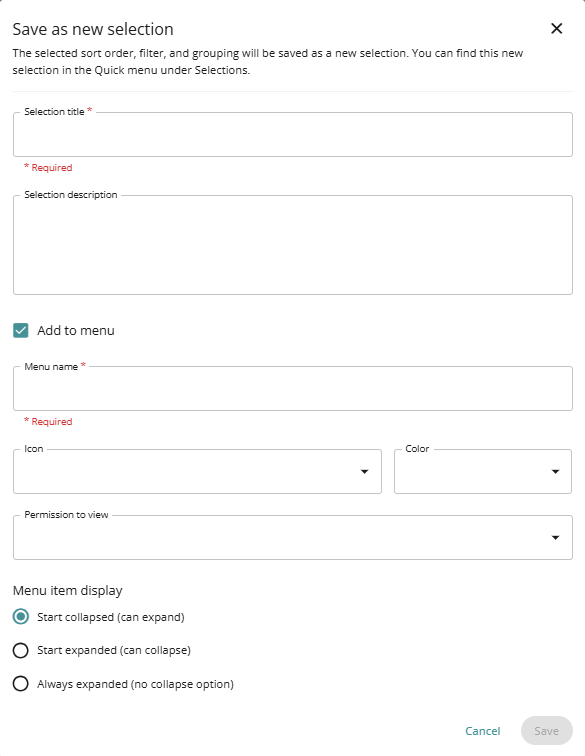
You can create selections directly from a view without going to system settings.
Edit a custom selection
1. Open the custom selection.
2. Click Options → Edit selection.
3. Update:
- Title
- Description
4. Save your changes.
Delete a selection
1. Open the custom selection.
2. Click Options → Delete selection.
3. Confirm deletion.
Deleting a selection is permanent.
Troubleshooting
Options button not visible
- Ensure you have administrator permissions.
Cannot edit or delete a selection
- The selection is likely a built-in selection.
New selection not visible in menu
- Check menu visibility settings and permissions.
- Ensure the menu item was created during setup.